Agent Mode Overview
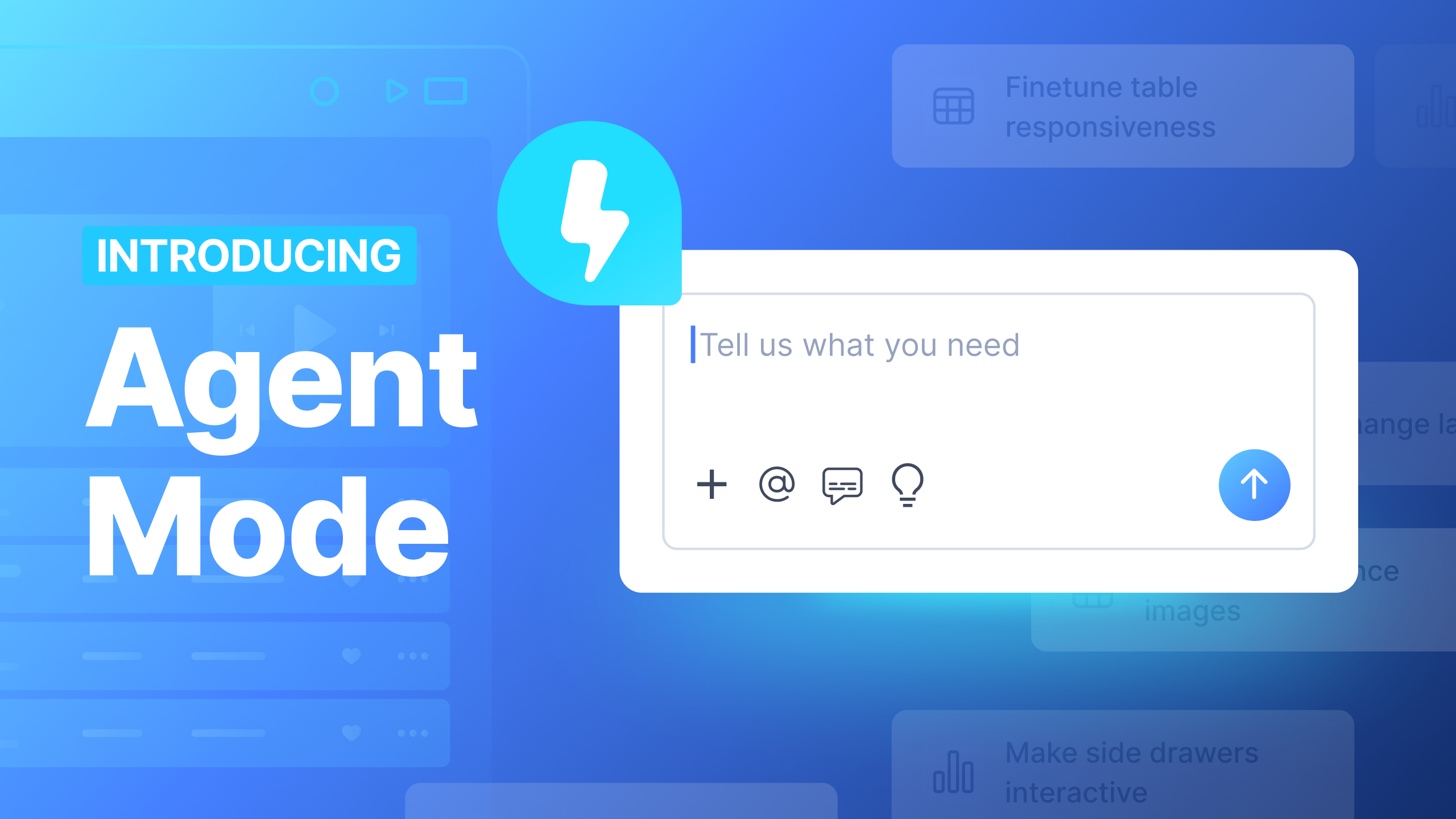
Agent Mode is an AI-powered editing environment in Locofy that lets you improve and extend your generated UI using simple prompts instead of manual code edits. It builds on Locofy’s Large Design Models, which first turn your designs into pixel-accurate, responsive, interactive, and modular frontend code.
On top of this design-aware foundation, Agent Mode uses AI agents with Large Language Models to quickly add theming, localisation, accessibility, validation, animations, and other advanced enhancements. Unlike Visual Mode, which focuses on reviewing structure and components from your Figma design, Agent Mode works directly on the code layer to introduce behaviours and optimisations that go beyond the original design.
How to Switch to Agent Mode
In the Plugin
- Run Locofy Lightning in the plugin.
- Go to Edit Mode.
- Use the toggle in the top toolbar to switch from Visual Mode → Agent Mode.
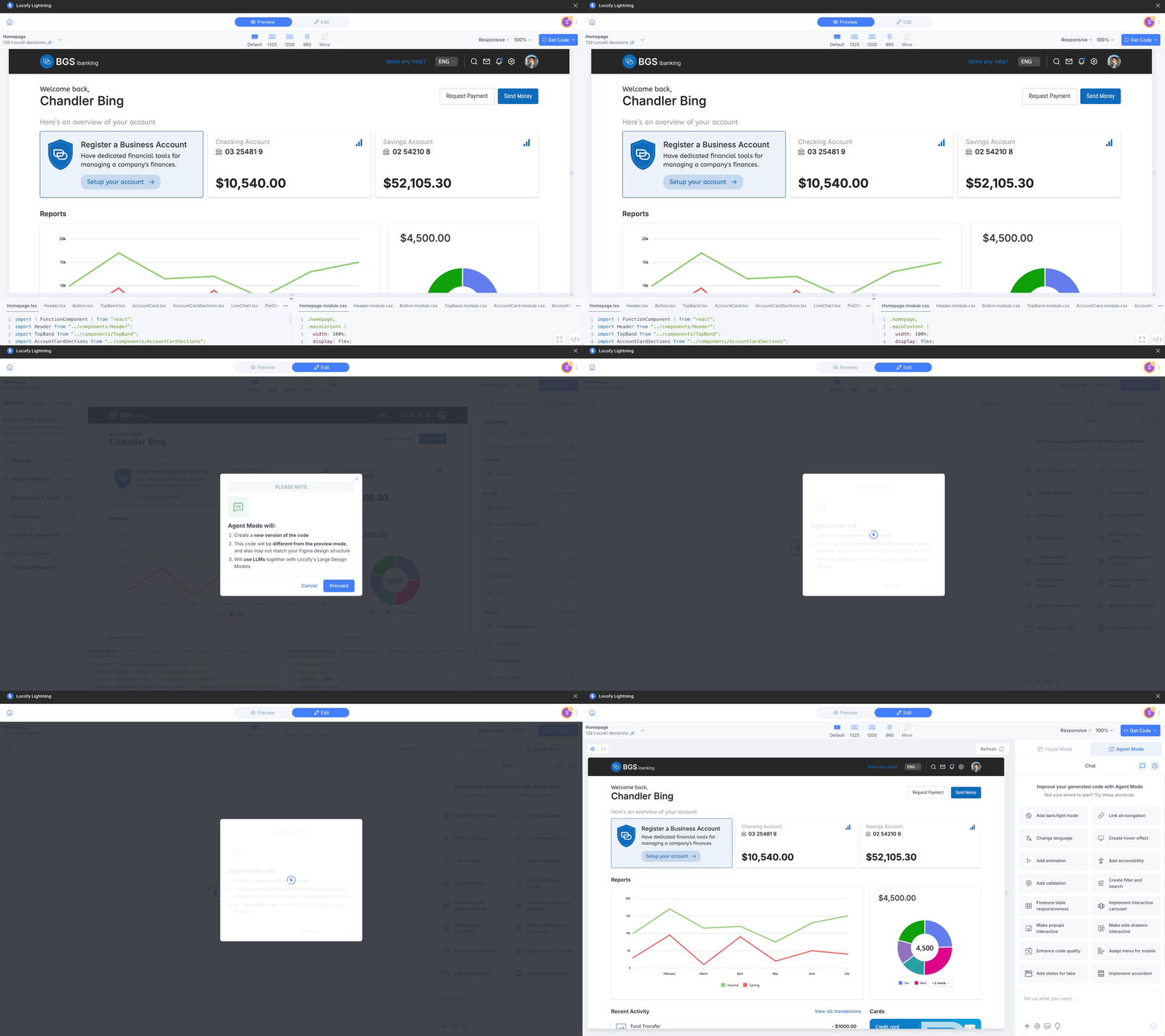
The first time you switch, you will see a confirmation popup explaining that:
- A new version of code will be created
- This version may not exactly match your Figma layer structure
- Changes will differ from Visual Preview
- Agent Mode uses LLMs together with Locofy’s Large Design Models
Once accepted, Agent Mode opens with its prompt interface and shortcut actions.
In Locofy Builder
- Open your project in Locofy Builder.
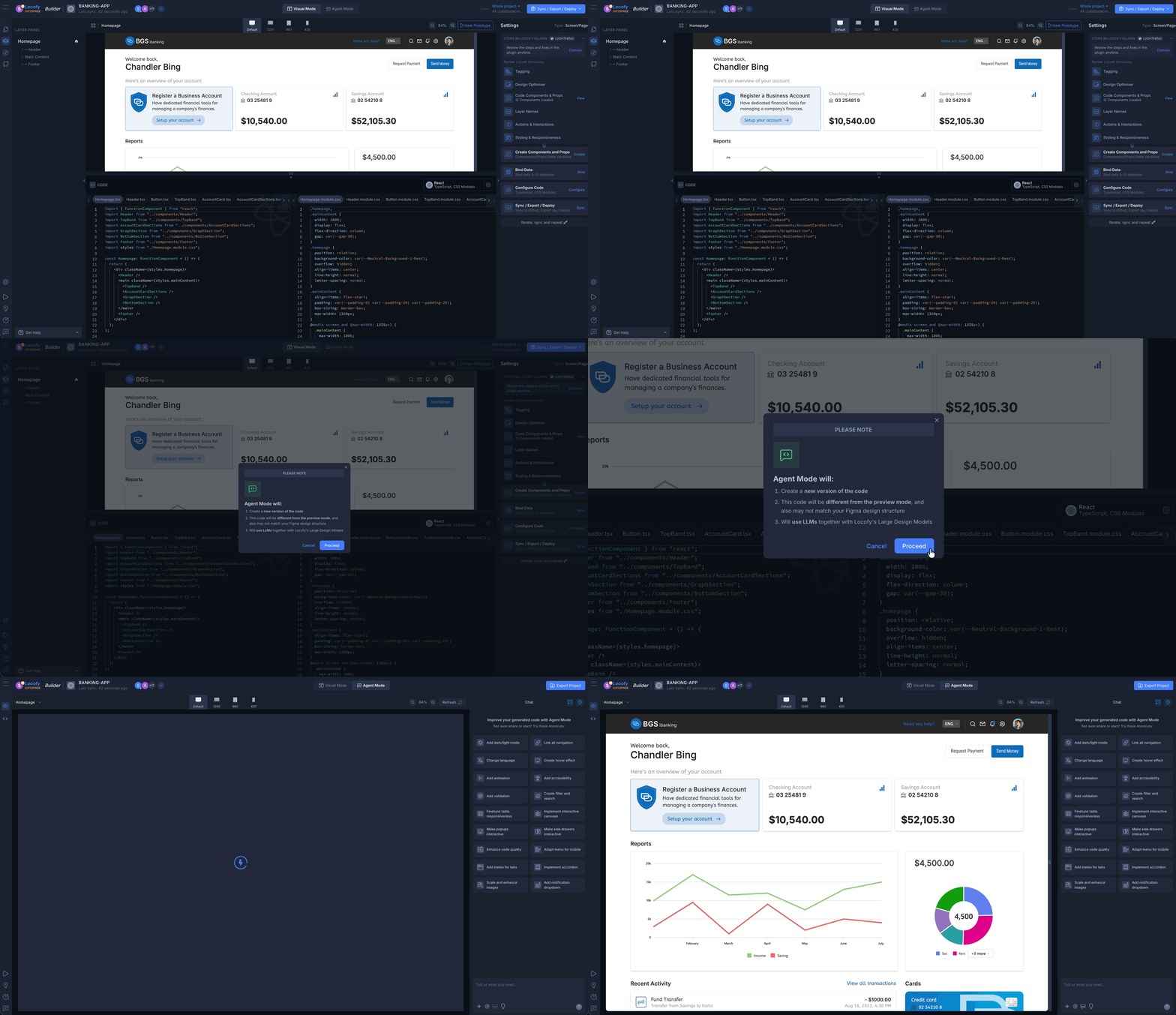
- In the top toolbar, on the same row as Collaborators, use the Visual Mode / Agent Mode switch in the center.
- Switching to Agent Mode in Builder opens the same prompt-based interface, but now you are working on live running code instead of a static design preview.
Syncing to Builder
After generating your project or making updates in the plugin, you can sync your project to Locofy Builder.
Before pushing to Builder, Locofy performs an automated AI merge of your Agent Mode changes with the latest project state. This ensures your improvements are combined safely without overwriting other work or requiring manual conflict resolution.
Inside Builder you can:
- Continue using Agent Mode on live running code
- Switch between Visual Mode and Agent Mode anytime
- View the entire project output in read-only mode to understand how your changes fit into the full app
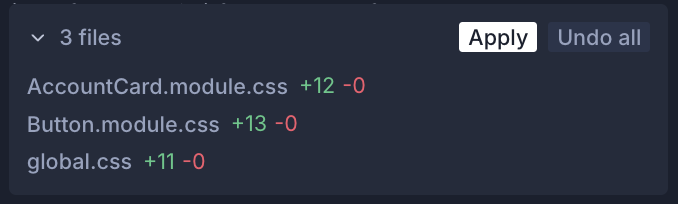
- Apply your Agent Mode work to the full project using Apply Changes
When you click Apply, Locofy merges your Agent Mode version with the whole project automatically, ensuring consistency across screens and components.
Both environments support Agent Mode, so your workflow remains flexible between plugin and Builder.
Chat, Selection Tools, and Shortcuts
At the bottom of Agent Mode, you will find the chat box, which acts as the primary control center for making updates and communicating intent to the AI.
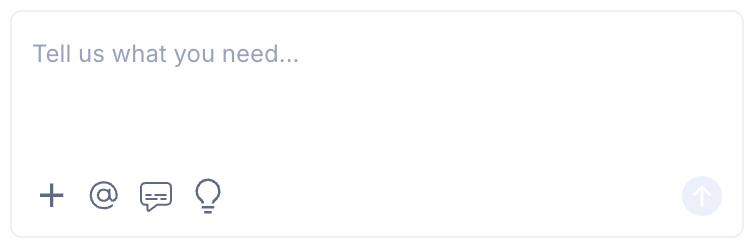
The chat box supports more than just text prompts:
Select Specific Sections on Screen
You can select a specific element or area on the preview screen and then type a prompt or comment.
This allows Agent Mode to understand exactly which part of the UI you want to modify, instead of applying global changes.
This is useful for:
- Fixing layout issues on a single section
- Adding validation to one form
- Improving accessibility for a specific component
- Making targeted styling or behaviour updates
Add Comments to Elements
You can leave contextual comments tied to selected elements. These act as instructions or notes for Agent Mode and help guide more precise updates.
Upload Reference Files
The chat box allows you to upload files such as screenshots, mockups, or reference images.
Agent Mode can use these as additional context when generating or refining UI changes.
Shortcut / Use-Case Suggestions
The light bulb icon in the chat box opens a list of predefined shortcuts and common use cases.
These include quick actions such as:
- Add accessibility
- Enable dark / light theme
- Change language
- Add validation
- Make carousels interactive
- Improve responsiveness
- Optimise layout
These shortcuts allow you to apply common improvements instantly without writing a full prompt, while still giving you the flexibility to customise further through chat.
Undo, Chats, and Version History
Agent Mode includes built-in version control so you can experiment safely and always recover previous work.
Undo Changes
In both the Plugin and Builder, you can undo recent updates directly within Agent Mode. Each major prompt or shortcut action creates a checkpoint, allowing you to step back without affecting your original generated output.
How Past Chats and Working Versions Behave
Agent Mode follows a single working version mental model until you explicitly merge your changes.
One Shared Working Folder
Until you press Sync to Builder (in the Plugin) or Apply Changes (in Builder), all conversations operate on the same working folder.
This means:
- Every new chat continues from the latest state of your Agent Mode changes
- Changes made in earlier conversations automatically carry forward
- There is no duplication of work between chats
For example:
- In Conversation C1, you modify 2 files.
- You then start Conversation C2.
- Conversation C2 begins with those 2 modified files already applied.
- You are always building on top of the most recent working state.
Read-Only Past Conversations
When you move to a new conversation:
- Previous conversations become read-only
- You can view them for reference
- You cannot edit, rollback, or continue modifying from an old chat
This prevents conflicting edits and ensures there is always a single clear direction of changes.
When Versions Become Final
A working version only becomes part of your main project when you:
- Click Sync to Builder in the Plugin, or
- Click Apply Changes in Builder
At this point, Locofy performs an automated AI merge and your working folder is merged into the full project. After merging, future Agent Mode sessions start from this newly updated base.
This model ensures there's a clear commit point when syncing or applying changes & no branching confusion.