Optimizing your designs for better code output
Locofy converts your design into code, and the quality of that code depends directly on how your design is structured.
Well-structured designs produce cleaner, more predictable code.
Poorly structured designs often lead to broken layouts, inconsistent spacing, and more manual fixes.
What a code-ready design looks like
One quick way to check if your design is well-structured is to see how it adapts to different screen sizes.
Try reducing the width of your design and observe how the elements adjust. In a well-structured design, elements should respond naturally without breaking layout or spacing.
Here’s what to look for:
- Clear grouping → Elements are logically grouped, making them easy to select, align, and maintain consistent spacing.
- Uses Auto Layout → Layouts adapt automatically, maintaining consistent spacing and alignment across different screen sizes.
- Flexible sizing (no fixed width/height) → Elements can grow or shrink as needed, instead of breaking when the screen size changes.
- No overlapping elements → Elements are properly spaced and aligned, avoiding layout collisions.
- Minimal and meaningful structure → Only necessary frames are used, keeping the design clean and easy to interpret.
- Proper constraints applied → Elements are anchored correctly, so layouts remain stable when resized.
Ways to optimize your design
There are multiple ways to optimise the design and code.
- Manually structure the designs following best practises.
- Use Locofy design optimiser to automate design structure. This is not perfect but gets you 70-80% there and the rest can be manually touched up.
- If you’re unable to invest time into structuring the designs, you can also just convert the designs to code and optimise the end result using Locofy Agent Mode.
We have covered each of these in detailed guides below.
Manual optimization gives you full control over how your design translates into code for cleaner, more predictable output.
Best for complex layouts and final polish before production.
How it works
Focus on these core fixes:
Group related elements properly
- Group items that belong together (e.g. card, button + label)
- Avoid scattered layers → makes layout unpredictable in code
Use Auto Layout for structure
- Apply Auto Layout to define spacing and alignment
- Use padding + gaps instead of manual positioning
- This ensures layouts adapt across screen sizes**.**
Avoid fixed dimensions where possible
- Replace fixed width/height with Hug / Fill
- Allows elements to resize naturally
Set proper constraints
- Define how elements resize (left/right, fill, center, etc.)
- Prevents layout from breaking on different screen sizes
Remove unnecessary layers
- Delete redundant frames, groups, or wrappers
- Keep hierarchy clean and intentional
Fix overlaps and spacing issues
- Ensure elements don’t overlap unintentionally
- Maintain consistent spacing using Auto Layout
For a detailed guide, refer to the full documentation here (opens in a new tab)
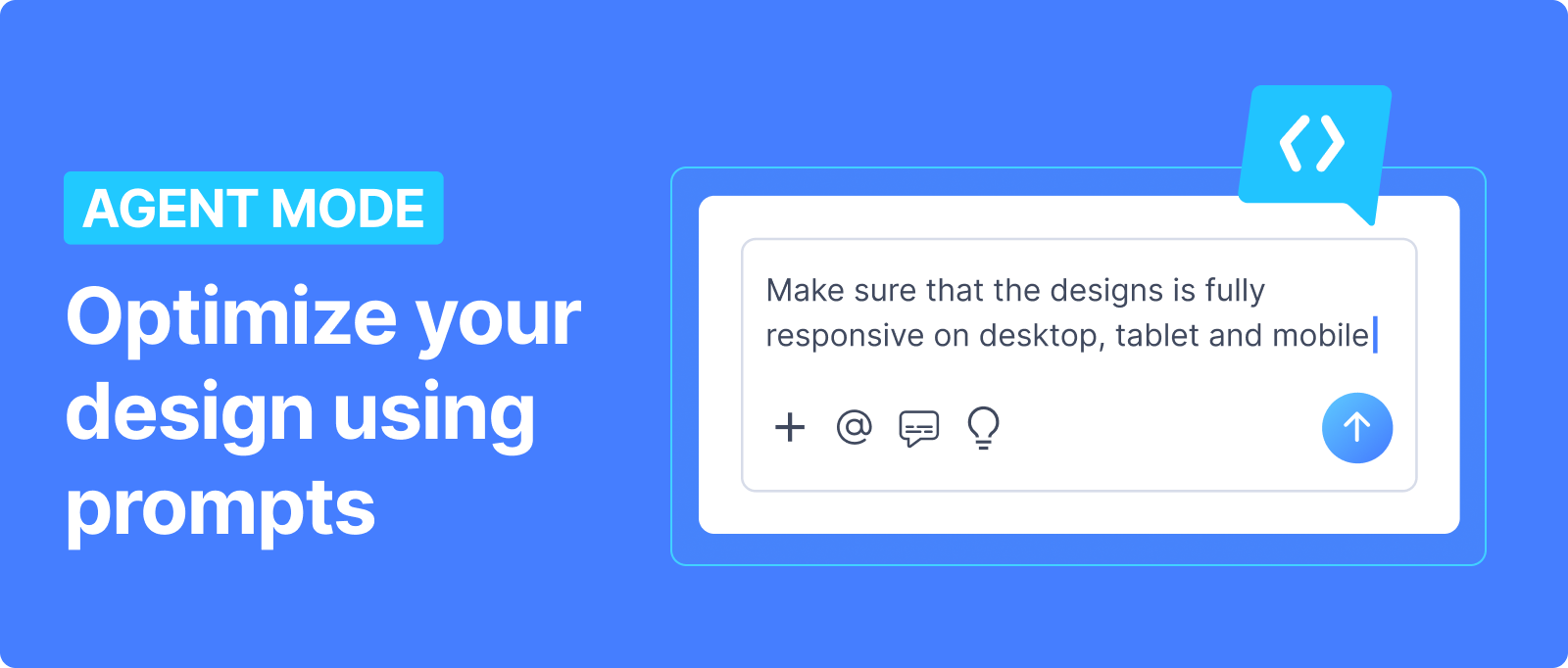
Agent Mode lets you optimize your design through simple prompts, without needing deep design knowledge.
Best for quickly improving structure and responsiveness with minimal manual work.
How it works
Agent Mode follows a simple workflow:
Set up and spot issues
- Convert your design using Lightning, then switch to Agent Mode
- Resize the screen to spot responsiveness and layout issues early
- Focus on areas that don’t adapt well
Apply high-level improvements
- Start with full-page responsiveness, unless you’re targeting specific areas
- Let the agent restructure layout, spacing, and sizing
Review and refine
- Resize the screen to validate responsiveness and layout behaviour
- Compare the result against your original design
- For highlighted mismatches, ignore or fix them with targeted prompts
- Keep iterating until both structure and responsiveness match what you want
Best practices
- Start with high-level improvements
- Use our prebuilt prompts as a guideline
- Let Locofy Agent Mode fix the overall structure before going into details
- Be specific about what you want
- If you know what “good” looks like, describe it clearly
- Avoid vague prompts like “fix this”, instead, say “for the header navigation menu, make sure to stack all elements vertically in smaller desktop / tablet with no overlapping, and in mobile screens, convert it into a hamburger menu”
- Give clear context when possible
- Provide references like screenshots or examples
- Helps the agent better match your intent
- Pro tip: Use our targeted prompt feature in order to add a prompt to a specific element
- Debug the prompt, not the model
- If the result is not what you want, refine instructions or narrow the scope, don’t resend the same request
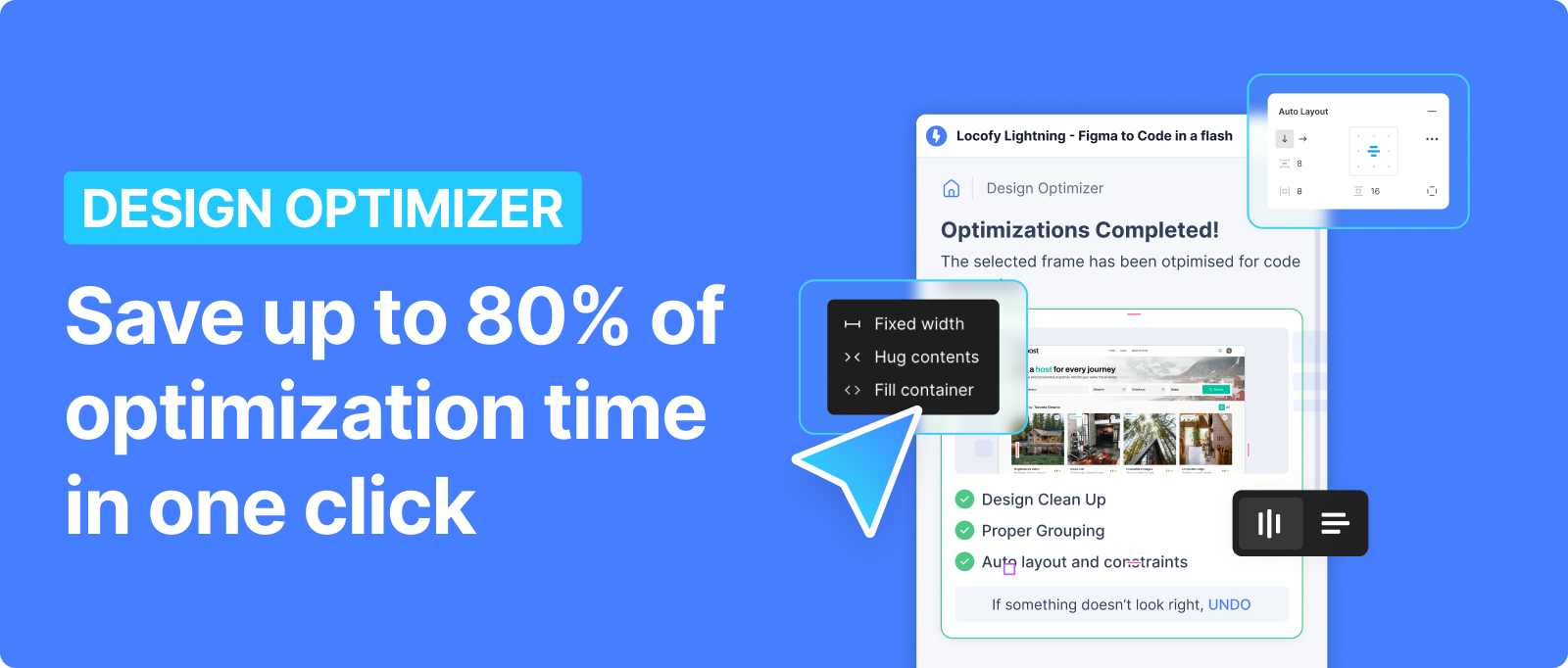
Design Optimizer automatically cleans up your design in one click, fixing common structural issues.
Best for fast cleanup and getting your design most of the way to code-ready.
How it works
Design Optimizer is a one-click process:
Select design and run optimization
- Select a frame within supported size (≤ 2000 × 4000)
- Click Optimize to start
- Optional: detach components to include them in optimization
Runs automatically - no action needed
- The model cleans up layers, grouping, spacing, and applies Auto Layout
- It standardizes structure while preserving your design
Review and finalize
- Compare the result with your original design
- Resize the screen to validate responsiveness and layout
- Manually optimize any remaining issues
Best practices
- Clean up overlapping elements where possible
- Reduce unnecessary overlaps before running optimization
- Helps the model apply layout and spacing more accurately
- Group complex visuals and illustrations
- Combine related layers into a single group
- Prevents the optimizer from breaking visual compositions
- Mark elements that should remain absolute
- Use layer naming (e.g. “absolute”) for elements that must overlap
- Ensures they are preserved and not restructured
Summary
- Use Locofy Design Optimizer for fast, automatic cleanup
- Use Locofy Agent Mode to refine and guide the output with prompts
- Apply manual optimization for complex designs and final polish