Tabs with States
Tab components let users switch between sections of content within the same view. Locofy generates the visual tab layout from your Figma design, but Agent Mode wires up the active state, content switching, and keyboard navigation automatically.
What Agent Mode Does
When you apply the tabs with states prompt, Agent Mode will:
- Add active/inactive state management so only one tab is selected at a time
- Wire up tab clicks to show the corresponding content panel and hide the others
- Apply active styling (underline, background, colour change) to the selected tab
- Add keyboard navigation so users can move between tabs with arrow keys
- Add the correct ARIA roles (
tablist,tab,tabpanel) and attributes (aria-selected,aria-controls) for accessibility - Handle the initial default selected tab
- Support disabled tab states where applicable
How to Apply
Using the Shortcut
- Switch to Agent Mode in the plugin or in Locofy Builder.
- In the new chat, you will see a list of prebuilt prompts. You can also click on the light bulb icon to open the shortcuts panel.
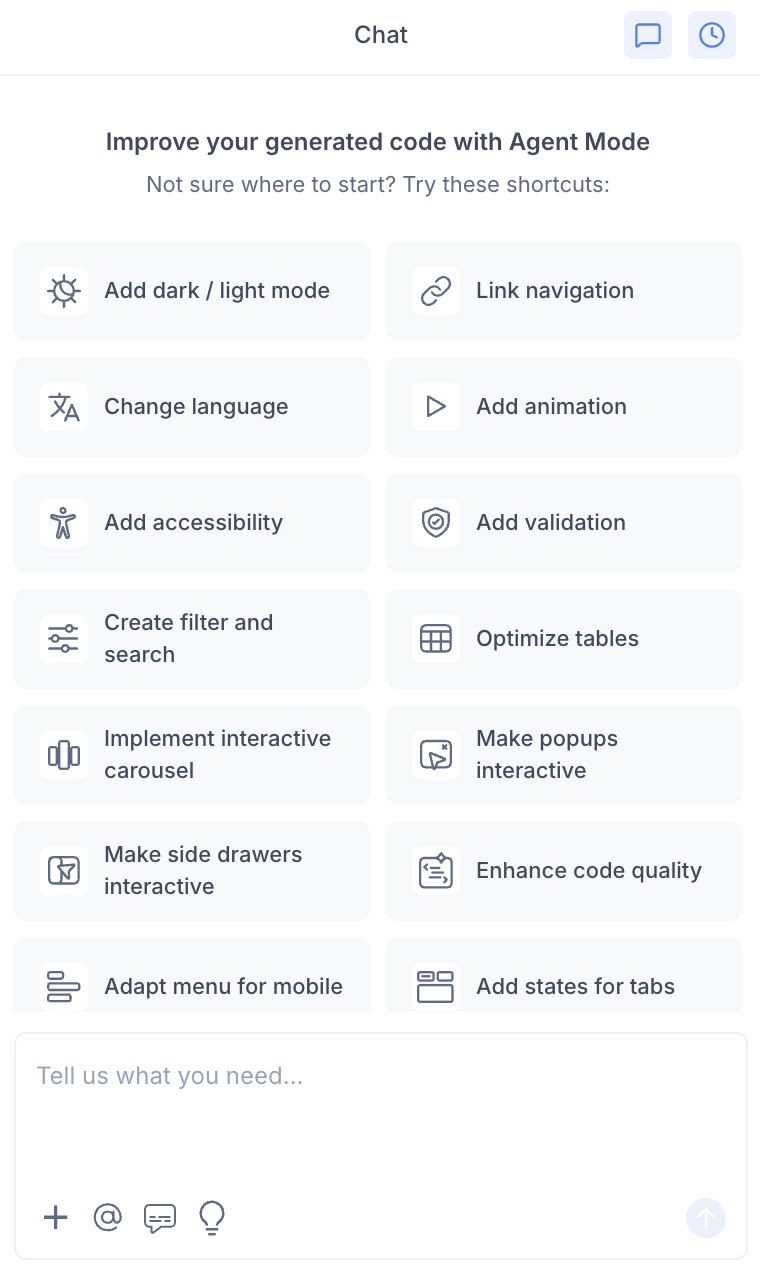
- Select "Add states to tabs" from the list.
- Agent Mode will wire up the tab component on the current screen.
Using a Custom Prompt
Type a prompt to describe the tab behaviour:
"Make the product tabs interactive. Clicking each tab should show its content panel and highlight the active tab."
"Add active state styling to the tabs — underline the selected tab and change its text colour."
"Wire up the dashboard tabs so each tab shows a different data section. Default to the first tab on load."
"Add keyboard navigation to the tabs so users can move between them with the left and right arrow keys."
"Make the 'Reviews' tab disabled and show a tooltip explaining it is coming soon."
Targeting a Specific Tab Group
To wire up one set of tabs on a page with multiple tab components:
- Use the selection tool in Agent Mode to highlight the tab group.
- Type your prompt.
Agent Mode will scope the interactivity to just the selected tab component.
Example Output
For a tab group with three panels:
const tabs = ['Overview', 'Features', 'Reviews'];
const [activeTab, setActiveTab] = useState(0);

return (
  <div>
    <div role="tablist" aria-label="Product details">
      {tabs.map((tab, i) => (
        <button
          key={tab}
          role="tab"
          id={`tab-${i}`}
          aria-selected={activeTab === i}
          aria-controls={`panel-${i}`}
          tabIndex={activeTab === i ? 0 : -1}
          className={activeTab === i ? 'tab tab-active' : 'tab'}
          onClick={() => setActiveTab(i)}
          onKeyDown={(e) => {
            if (e.key === 'ArrowRight') setActiveTab((activeTab + 1) % tabs.length);
            if (e.key === 'ArrowLeft') setActiveTab((activeTab - 1 + tabs.length) % tabs.length);
          }}
        >
          {tab}
        </button>
      ))}
    </div>

    {tabs.map((tab, i) => (
      <div
        key={tab}
        role="tabpanel"
        id={`panel-${i}`}
        aria-labelledby={`tab-${i}`}
        hidden={activeTab !== i}
      >
        {/* panel content for {tab} */}
      </div>
    ))}
  </div>
);
With active tab styling:
.tab {
  padding: 10px 20px;
  border-bottom: 2px solid transparent;
  color: var(--color-text-secondary);
  transition: color 0.15s ease, border-color 0.15s ease;
}

.tab-active {
  border-bottom-color: var(--color-primary);
  color: var(--color-primary);
  font-weight: 600;
}
Customising Tab Behaviour
Once the base interactivity is applied, you can extend it:
"Add a smooth fade transition when switching between tab panels."
"Persist the active tab in the URL hash so users can share a direct link to a specific tab."
"Add a badge count to the 'Notifications' tab showing the number of unread items."
"Convert the tabs to a scrollable horizontal tab bar on mobile."
Tips
- Use the selection tool to target a specific tab group if the page has multiple independent tab components.
- Combine tabs with accordion for mobile — tabs on desktop often convert to an accordion layout on small screens.
- If your tabs load data asynchronously, mention this in your prompt so Agent Mode adds a loading state to the panel content.
- After applying, test keyboard navigation by pressing Tab to focus the tab bar, then using arrow keys to move between tabs.