Scale and Enhance Images
Images in generated UI often use fixed dimensions, missing optimisation attributes, or lack responsive behaviour. In Agent Mode, you can scale, optimise, and enhance all images in your UI using a prompt — ensuring they look sharp, load efficiently, and adapt correctly across screen sizes.
What Agent Mode Does
When you apply the scale and enhance images prompt, Agent Mode will:
- Replace fixed-dimension images with responsive sizing using
max-width: 100%or framework-native responsive image components - Add
widthandheightattributes to prevent layout shift (CLS) during page load - Add
loading="lazy"to below-the-fold images to improve initial page load performance - Add descriptive
alttext to images that are missing it - Convert images to use
object-fit: coverorobject-fit: containwhere appropriate to prevent distortion - Apply
srcsetor use framework image components (e.g. Next.js<Image>) for automatic format and size optimisation - Add aspect ratio containers to prevent layout reflow as images load
- Apply image zoom or overlay effects where relevant (e.g. in product cards or galleries)
How to Apply
Using the Shortcut
- Switch to Agent Mode in the plugin or in Locofy Builder.
- In the new chat, you will see a list of prebuilt prompts. You can also click on the light bulb icon to open the shortcuts panel.
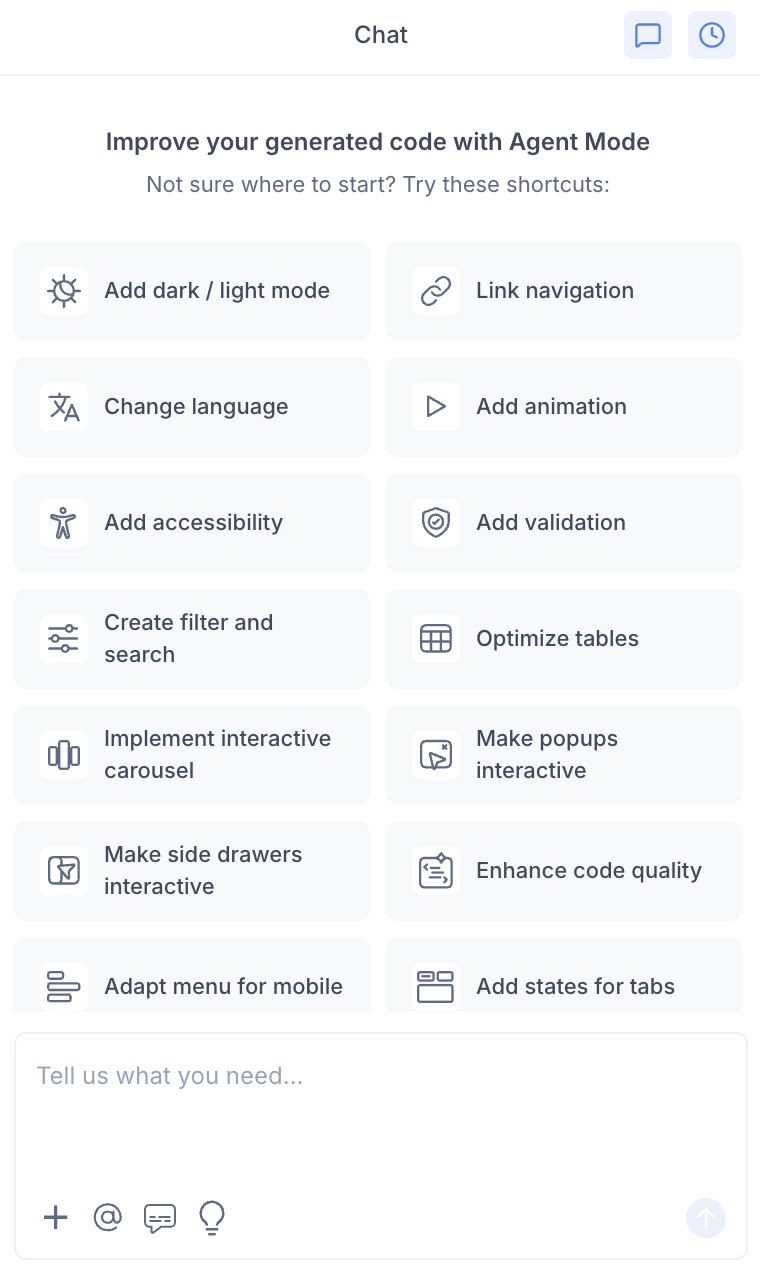
- Select "Scale and enhance images" from the list.
- Agent Mode will update all images on the current screen.
Using a Custom Prompt
Type a prompt to describe the specific image improvements you need:
"Make all images responsive so they scale correctly on mobile without overflowing their containers."
"Add lazy loading to all images below the fold."
"Replace the fixed-size product images with Next.js Image components for automatic optimisation."
"Add aspect ratio containers to all card images so the layout doesn't shift while images load."
"Make the hero image cover its container without distortion using object-fit: cover."
"Add alt text to all images that are currently missing it."
Targeting Specific Images
To update images in one section without affecting others:
- Use the selection tool in Agent Mode to highlight the component containing the images.
- Type your prompt.
Agent Mode will scope the changes to just the selected area.
Example Output
For a product card with a fixed-size image, Agent Mode transforms:
// Before
<img src={product.image} width="300" height="200" />
into a responsive, optimised version:
// After (Next.js project)
import Image from 'next/image';

<div className="image-container">
  <Image
    src={product.image}
    alt={product.name}
    fill
    sizes="(max-width: 640px) 100vw, (max-width: 1024px) 50vw, 33vw"
    style={{ objectFit: 'cover' }}
    loading="lazy"
  />
</div>
.image-container {
position: relative;
aspect-ratio: 3 / 2;
overflow: hidden;
border-radius: 8px;
}For a standard HTML/CSS project:
<img
  src="product.jpg"
  alt="Blue running shoes"
  loading="lazy"
  width="600"
  height="400"
  style="width: 100%; height: auto; object-fit: cover;"
/>
Customising Image Enhancements
Once the base improvements are applied, you can refine further:
"Add a blur placeholder that shows while the image is loading."
"Add a zoom effect on hover for all product images."
"Convert the gallery to use a masonry layout with responsive image sizing."
"Add a fallback placeholder image for cases where the image URL fails to load."
"Prioritise the hero image so it loads eagerly while all other images lazy load."
Tips
- Combine image enhancements with interactive carousel — carousels with optimised images load faster and display more sharply.
- Combine with hover effects to add zoom or overlay animations on top of the optimised image structure.
- If you are using Next.js, mention it in your prompt so Agent Mode uses the
<Image>component instead of standard<img>tags for automatic WebP conversion and resizing. - Always specify
alttext requirements in your prompt — Agent Mode will generate descriptive alt text based on the image context, but you should review and refine it for accuracy. - The
priorityprop (Next.js) orloading="eager"should only be used for above-the-fold images like hero banners — mention this distinction in your prompt if needed.