Notification Dropdown
A notification dropdown lets users view recent alerts, messages, or activity without leaving the current page. Locofy generates the visual layout of the notification panel from Figma, but Agent Mode wires up the open/close behaviour, unread badge, and mark-as-read logic automatically.
What Agent Mode Does
When you apply the notification dropdown prompt, Agent Mode will:
- Add open/close state management to the notification panel
- Wire up the bell icon or trigger button to toggle the dropdown
- Close the dropdown when the user clicks outside of it
- Add an unread count badge on the trigger icon that updates as notifications are read
- Add a "Mark all as read" action that clears the unread state
- Apply visual distinction between read and unread notification items
- Add a smooth open/close transition animation
- Handle keyboard accessibility — close on Escape key, correct focus management
- Add an empty state for when there are no notifications
How to Apply
Using the Shortcut
- Switch to Agent Mode in the plugin or in Locofy Builder.
- In the new chat, you will see a list of prebuilt prompts. You can also click on the light bulb icon to open the shortcuts panel.
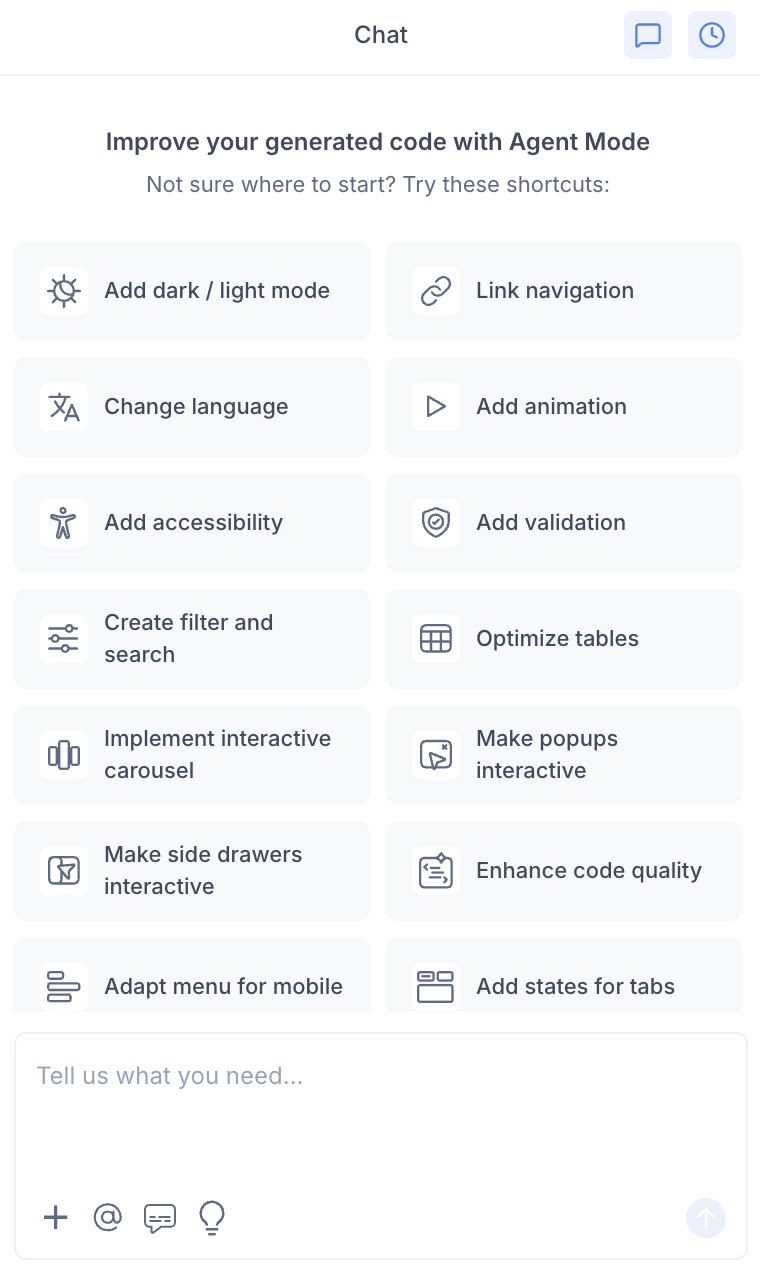
- Select "Add notification dropdown" from the list.
- Agent Mode will wire up the notification component on the current screen.
Using a Custom Prompt
Type a prompt to describe the notification behaviour:
"Make the notification bell interactive. Clicking it should open a dropdown with the list of notifications."
"Add an unread count badge to the bell icon. Mark notifications as read when the dropdown is opened."
"Add a 'Mark all as read' button at the top of the notification dropdown."
"Close the notification dropdown when the user clicks anywhere outside of it."
"Add an empty state message when there are no notifications."
Targeting a Specific Notification Component
To wire up one notification dropdown on a page with multiple header components:
- Use the selection tool in Agent Mode to highlight the notification bell and its panel.
- Type your prompt.
Agent Mode will scope the interactivity to just the selected component.
Example Output
For a notification dropdown with an unread badge:
const [isOpen, setIsOpen] = useState(false);
const [notifications, setNotifications] = useState(initialNotifications);
const dropdownRef = useRef(null);

const unreadCount = notifications.filter((n) => !n.read).length;

const markAllAsRead = () => {
  setNotifications((prev) => prev.map((n) => ({ ...n, read: true })));
};

// Close on outside click
useEffect(() => {
  const handleClickOutside = (e) => {
    if (dropdownRef.current && !dropdownRef.current.contains(e.target)) {
      setIsOpen(false);
    }
  };
  document.addEventListener('mousedown', handleClickOutside);
  return () => document.removeEventListener('mousedown', handleClickOutside);
}, []);

return (
  <div className="notification-wrapper" ref={dropdownRef}>
    <button
      className="notification-trigger"
      onClick={() => setIsOpen(!isOpen)}
      aria-label={`Notifications${unreadCount > 0 ? `, ${unreadCount} unread` : ''}`}
      aria-expanded={isOpen}
      aria-haspopup="true"
    >
      <BellIcon />
      {unreadCount > 0 && (
        <span className="badge" aria-hidden="true">{unreadCount}</span>
      )}
    </button>

    {isOpen && (
      <div className="notification-dropdown" role="menu">
        <div className="dropdown-header">
          <h3>Notifications</h3>
          {unreadCount > 0 && (
            <button onClick={markAllAsRead}>Mark all as read</button>
          )}
        </div>

        {notifications.length === 0 ? (
          <p className="empty-state">No notifications yet.</p>
        ) : (
          <ul>
            {notifications.map((n) => (
              <li key={n.id} className={n.read ? 'notification-read' : 'notification-unread'}>
                <p>{n.message}</p>
                <time>{n.timestamp}</time>
              </li>
            ))}
          </ul>
        )}
      </div>
    )}
  </div>
);
Customising the Notification Dropdown
Once the base interactivity is applied, you can extend it:
"Add a 'View all notifications' link at the bottom of the dropdown that navigates to a full notifications page."
"Group notifications by date — Today, Yesterday, and Earlier."
"Add a delete button on each notification item so users can dismiss individual notifications."
"Show a real-time notification count by polling an API every 30 seconds."
"Add a dot indicator on unread notifications instead of a background colour change."
Tips
- Use the selection tool to target the notification bell if the header has multiple icon buttons.
- Combine the notification dropdown with accessibility to ensure the unread count is announced to screen readers and focus is managed correctly.
- If notifications come from an API, mention this in your prompt so Agent Mode wires the component to a data fetch rather than static sample data.
- After applying, test the outside-click behaviour by opening the dropdown and clicking elsewhere on the page to confirm it closes correctly.