Adapt Menu for Mobile
Desktop navigation menus — horizontal nav bars, mega menus, and multi-level dropdowns — need to be restructured for mobile screens where space is limited. In Agent Mode, you can adapt any navigation component to work on mobile using a prompt, without manually rewriting the layout.
What Agent Mode Does
When you apply the mobile menu prompt, Agent Mode will:
- Replace the desktop horizontal navigation with a hamburger button on small screens
- Wire up the hamburger button to open and close a mobile menu (typically a side drawer or a full-screen overlay)
- Preserve all navigation links and their hierarchy in the mobile layout
- Add smooth open/close transitions to the mobile menu
- Handle multi-level navigation by converting dropdown sub-menus into expandable accordion sections
- Ensure the menu closes when a link is clicked or the Escape key is pressed
- Apply the changes using CSS media queries so the desktop layout is preserved on larger screens
- Add appropriate ARIA attributes for screen reader and keyboard accessibility
How to Apply
Using the Shortcut
- Switch to Agent Mode in the plugin or in Locofy Builder.
- In the new chat, you will see a list of prebuilt prompts. You can also click on the light bulb icon to open the shortcuts panel.
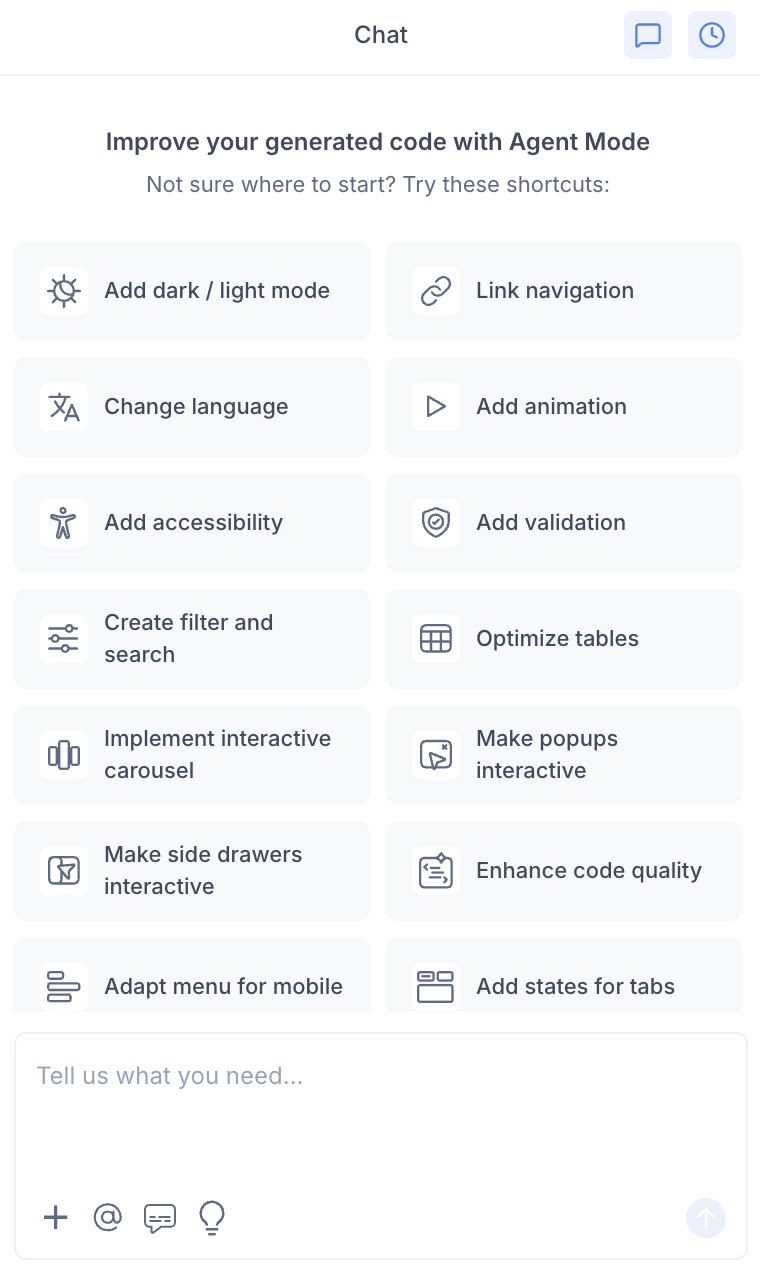
- Select "Adapt menu for mobile" from the list.
- Agent Mode will convert the navigation on the current screen to be mobile-friendly.
Using a Custom Prompt
Type a prompt to specify the mobile menu style:
"Convert the desktop nav bar to a hamburger menu on mobile. Open a side drawer with all the navigation links when clicked."
"On screens smaller than 768px, replace the top navigation with a hamburger button that opens a full-screen overlay menu."
"Make the multi-level dropdown navigation work on mobile by converting sub-menus into expandable accordion sections."
"Add a sticky mobile header with a hamburger button that opens a slide-down menu."
Targeting a Specific Navigation
To adapt one navigation component on a page with multiple menus:
- Use the selection tool in Agent Mode to highlight the navigation bar.
- Type your prompt.
Agent Mode will scope the changes to just the selected navigation component.
Example Output
Agent Mode adds a responsive navigation that switches between desktop and mobile layouts:
const [menuOpen, setMenuOpen] = useState(false);

return (
  <header>
    <nav className="nav-desktop">
      {navLinks.map((link) => (
        <a key={link.href} href={link.href}>{link.label}</a>
      ))}
    </nav>

    <button
      className="hamburger"
      onClick={() => setMenuOpen(!menuOpen)}
      aria-label={menuOpen ? 'Close menu' : 'Open menu'}
      aria-expanded={menuOpen}
      aria-controls="mobile-menu"
    >
      {menuOpen ? '✕' : '☰'}
    </button>

    <nav
      id="mobile-menu"
      className={`nav-mobile ${menuOpen ? 'nav-mobile-open' : ''}`}
    >
      {navLinks.map((link) => (
        <a key={link.href} href={link.href} onClick={() => setMenuOpen(false)}>
          {link.label}
        </a>
      ))}
    </nav>
  </header>
);
With CSS media queries:
.nav-desktop {
  display: flex;
  gap: 24px;
}

.hamburger {
  display: none;
}

@media (max-width: 768px) {
  .nav-desktop {
    display: none;
  }

  .hamburger {
    display: block;
  }

  .nav-mobile {
    display: none;
    flex-direction: column;
    position: absolute;
    top: 60px;
    left: 0;
    right: 0;
    background: var(--color-background);
    padding: 16px;
  }

  .nav-mobile.nav-mobile-open {
    display: flex;
  }
}
Customising the Mobile Menu
Once the base mobile menu is applied, you can refine it:
"Add a slide-down animation when the mobile menu opens."
"Add a dark overlay behind the mobile menu when it is open."
"Make the mobile menu a bottom sheet that slides up from the bottom of the screen."
"Add active state styling to the current page link in the mobile menu."
Tips
- Combine mobile menu with interactive side drawers — the mobile menu often uses a side drawer as its container.
- Use the selection tool to target the specific navigation bar if the page has both a top nav and a secondary nav.
- After applying, test the menu at the 375px and 768px breakpoints in the preview to verify the transition between mobile and desktop layouts.
- If your navigation has dropdowns, mention this in your prompt so Agent Mode handles the sub-menu conversion correctly.