Code Quality
Generated code is optimised for accuracy and completeness, but Agent Mode can further refine it for maintainability, readability, and production standards. Use the code quality prompt to clean up, restructure, and improve the generated output before exporting or syncing to your codebase.
What Agent Mode Does
When you apply the code quality prompt, Agent Mode will:
- Extract repeated inline styles into reusable CSS classes or utility classes
- Break large monolithic components into smaller, focused sub-components
- Remove unused imports, variables, and dead code
- Replace magic numbers and hardcoded values with named constants or design tokens
- Add consistent naming conventions across components, props, and CSS classes
- Improve prop types or TypeScript interfaces for better type safety
- Consolidate duplicated logic into shared utility functions or custom hooks
- Add meaningful comments to non-obvious logic (without narrating obvious code)
- Ensure consistent code formatting aligned with standard style guides
How to Apply
Using the Shortcut
- Switch to Agent Mode in the plugin or in Locofy Builder.
- In the new chat, you will see a list of prebuilt prompts. You can also click on the light bulb icon to open the shortcuts panel.
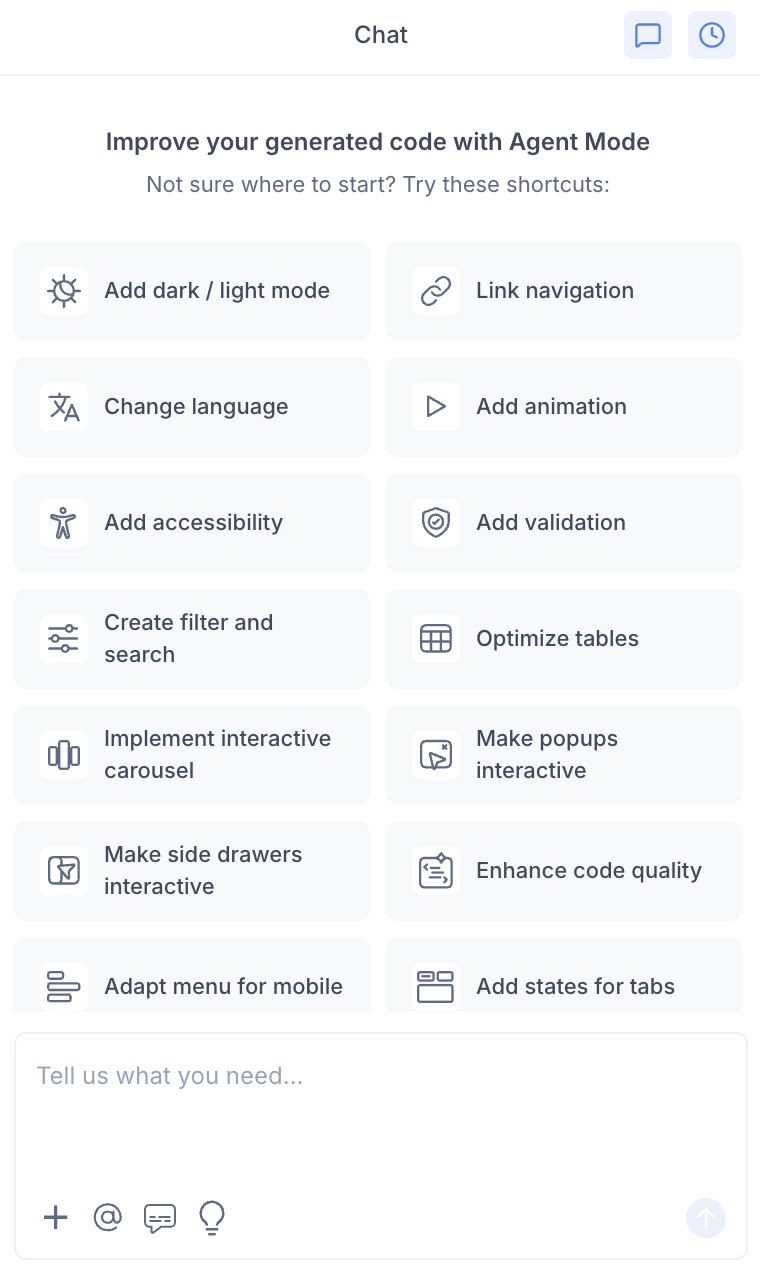
- Select "Enhance code quality" from the list.
- Agent Mode will refactor and clean up the code for the current screen or component.
Using a Custom Prompt
Type a prompt to focus on specific quality improvements:
"Extract all inline styles into a separate CSS module file."
"Break the ProductCard component into smaller sub-components: ProductImage, ProductInfo, and ProductActions."
"Replace all hardcoded colour hex values with CSS variables from the theme."
"Add TypeScript interfaces for all component props."
"Extract the data fetching logic from the component into a custom React hook."
"Remove all unused imports and variables from the components."
Targeting a Specific Component
To improve the quality of one component without touching others:
- Use the selection tool in Agent Mode to highlight the component.
- Type your prompt describing the specific improvement.
Agent Mode will scope the refactoring to just the selected component.
Example Output
Agent Mode extracts repeated inline styles into a CSS module:
// Before
<div style={{ display: 'flex', gap: '12px', padding: '16px', backgroundColor: '#f5f5f5' }}>
  <span style={{ fontSize: '14px', color: '#666' }}>{label}</span>
</div>

// After
import styles from './Card.module.css';

<div className={styles.container}>
  <span className={styles.label}>{label}</span>
</div>
/* Card.module.css */
.container {
display: flex;
gap: 12px;
padding: 16px;
background-color: var(--color-surface);
}
.label {
font-size: 14px;
color: var(--color-text-secondary);
}Agent Mode splits a large component into focused sub-components:
// Before: one large ProductCard component

// After: broken into focused pieces
const ProductCard = ({ product }) => (
  <div className={styles.card}>
    <ProductImage src={product.image} alt={product.name} />
    <ProductInfo name={product.name} price={product.price} />
    <ProductActions productId={product.id} onAddToCart={handleAddToCart} />
  </div>
);
Customising Code Quality Improvements
Once the initial refactoring is applied, you can continue improving:
"Convert the class-based components to functional components with hooks."
"Add JSDoc comments to all exported functions and components."
"Memoize the ProductList component to prevent unnecessary re-renders."
"Move all API call functions into a dedicated
api/folder."
Tips
- Apply code quality improvements after all functional enhancements (validation, theming, accessibility) are complete, so you are refactoring the final version of the code.
- Use the selection tool to refactor one component at a time for more precise control over the changes.
- Combine code quality with accessibility — both improve the long-term maintainability and correctness of your components.
- Be specific in your prompt about the refactoring goal (e.g. "extract styles" vs "split components") to get the most focused changes.