Tagging your React Native Top Tab
Learn how to tag your top tabs for your React Native mobile app.
Tagging your Top Tabs
- Select the entire tab bar and tag it as a "Top tab."
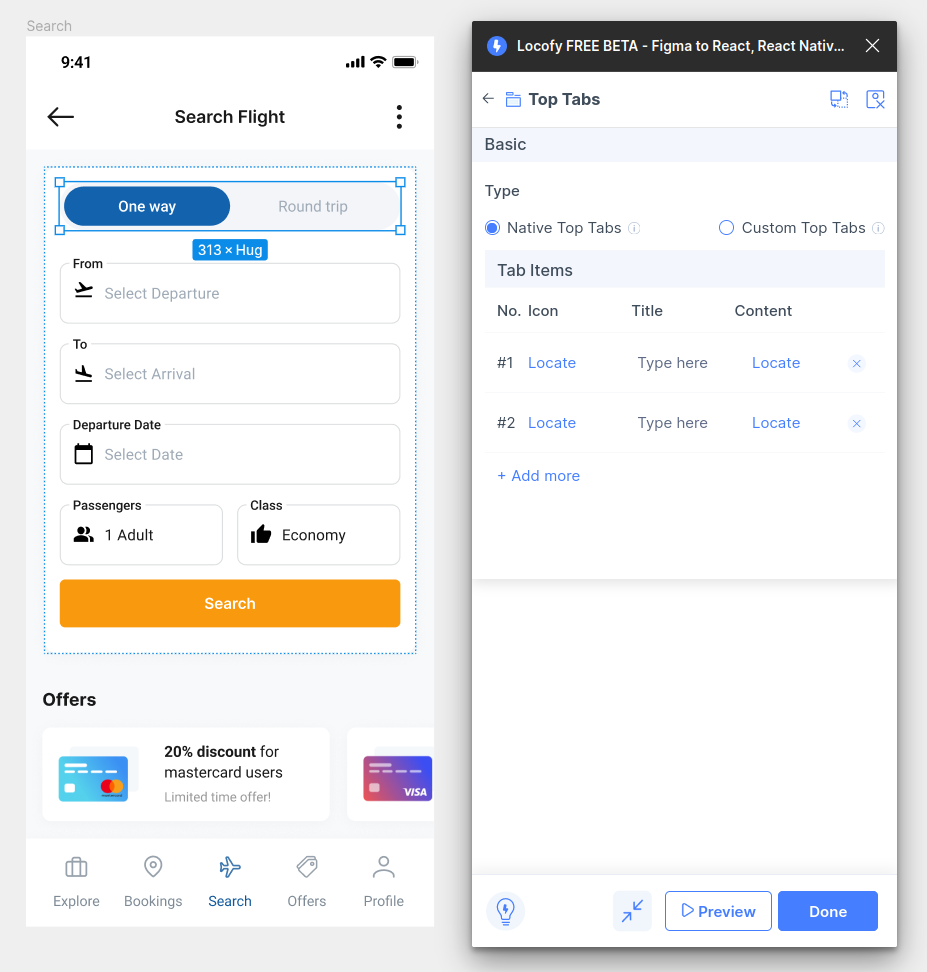
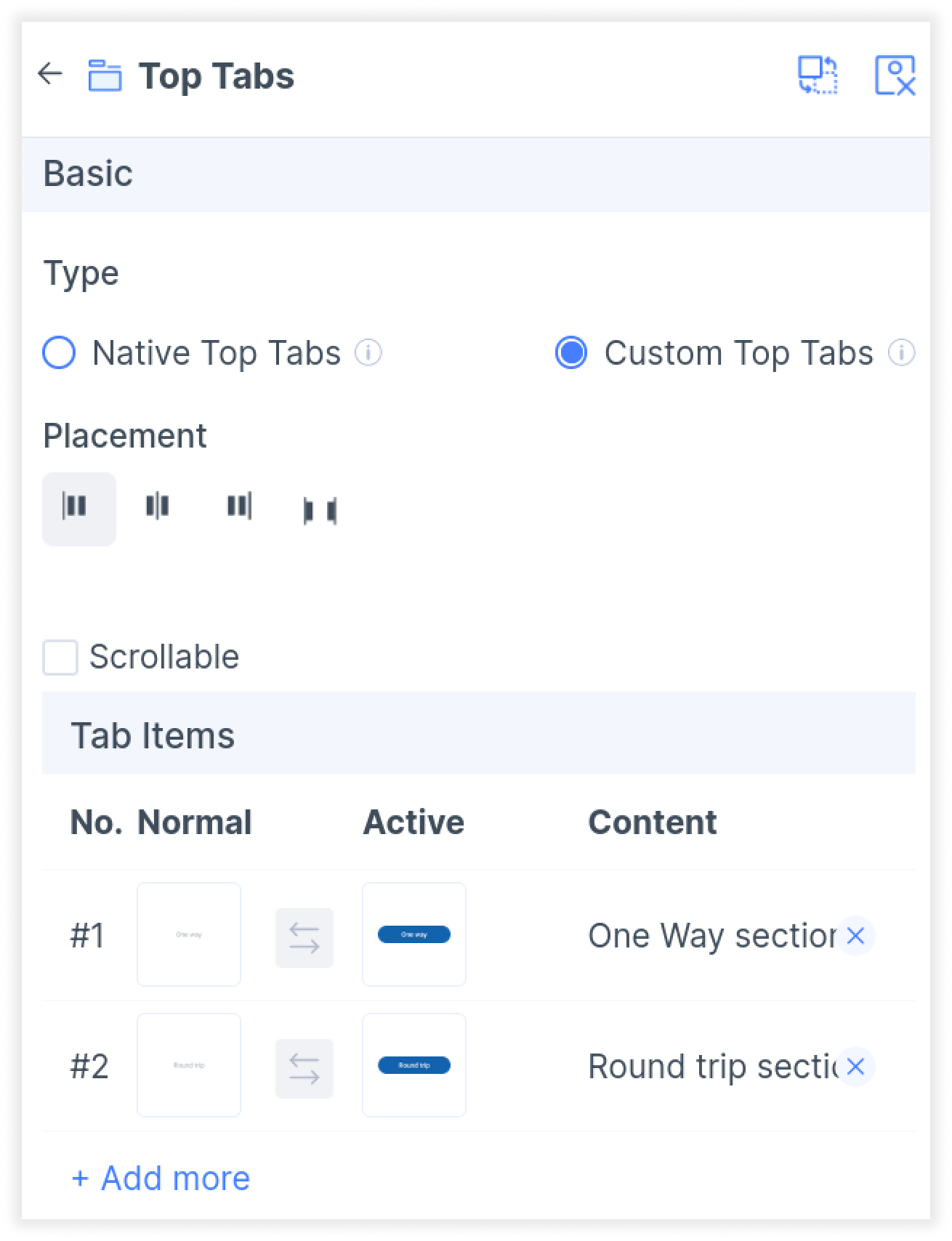
- As this is a custom design, select "Custom Top Tabs" in the editing tab.
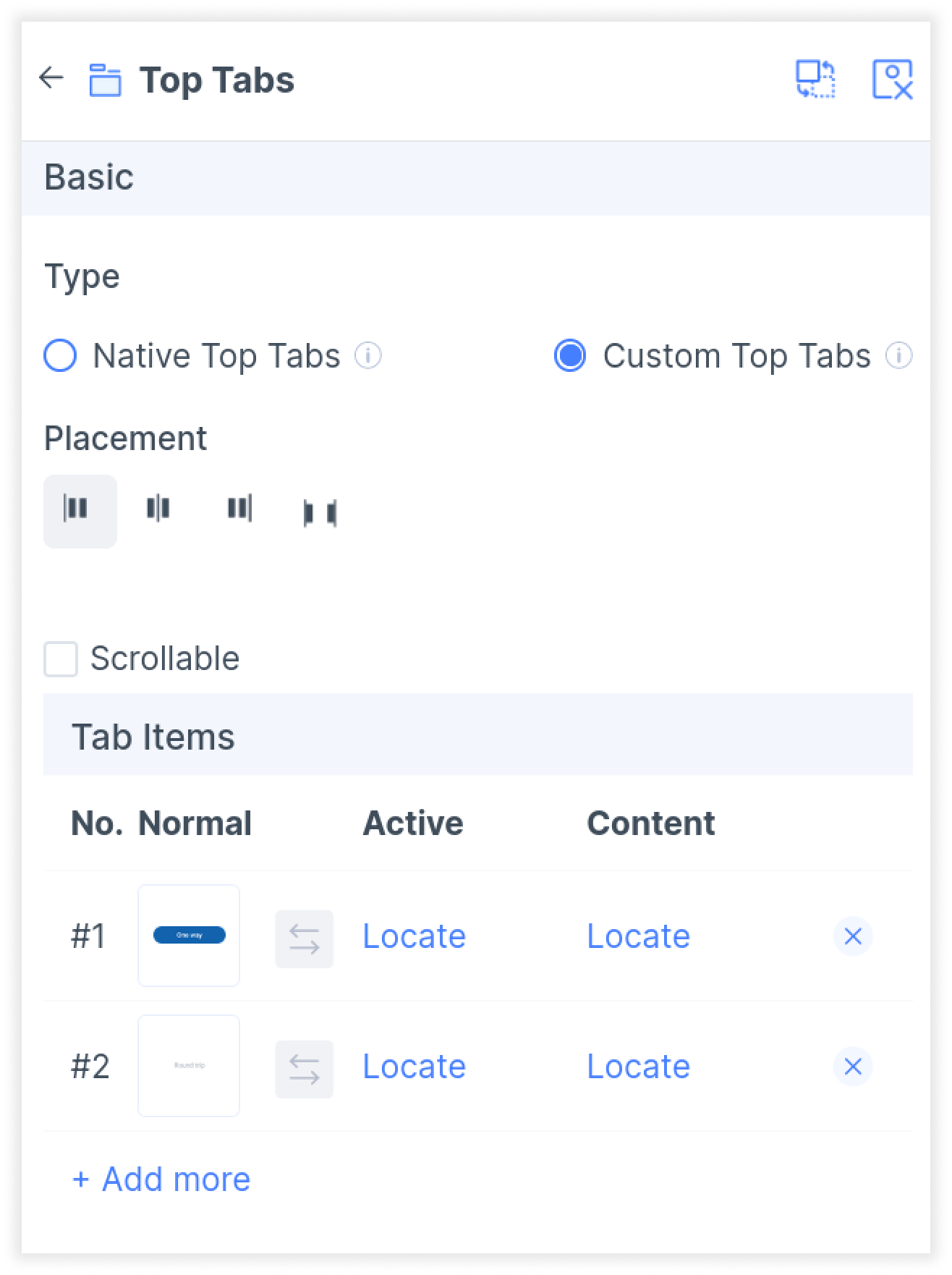
- You’ll notice that some of the icons are automatically detected based on your selection. Use the swap button if you need to swap your active and normal state icons
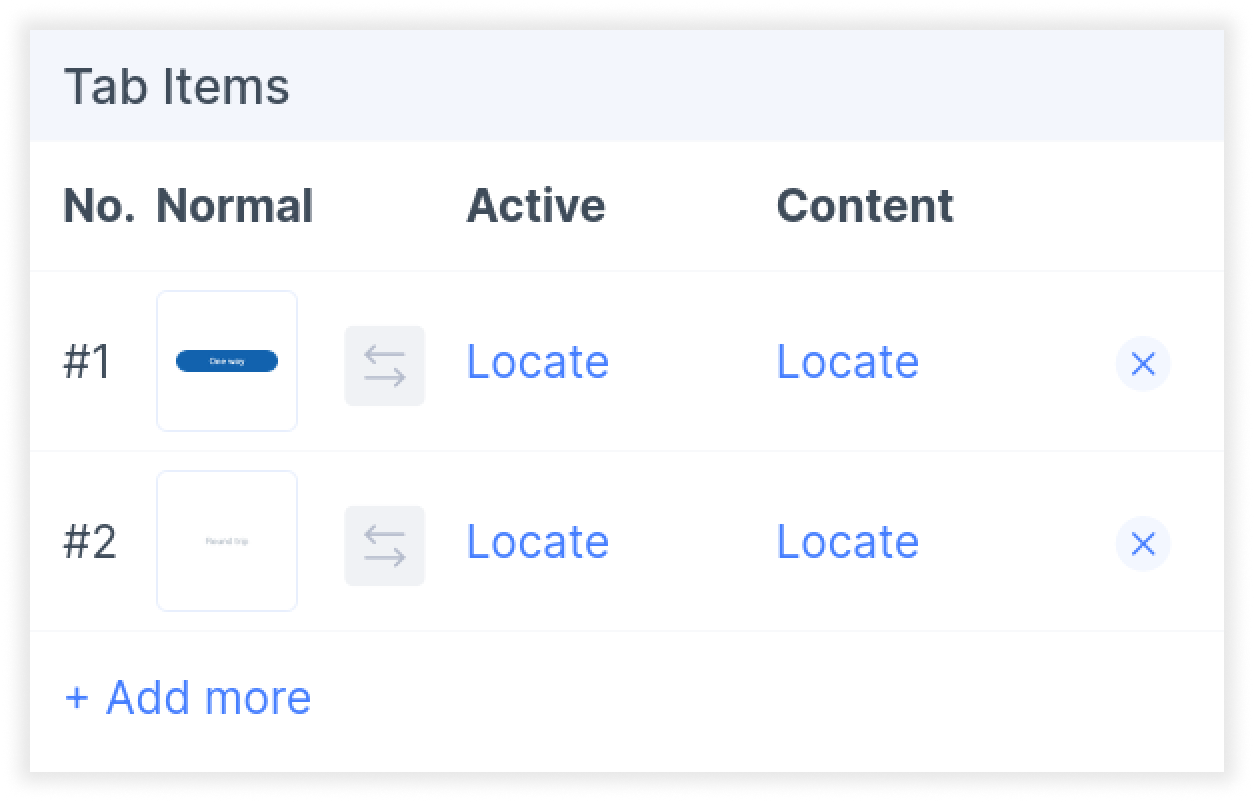
- You will need to select and locate the correct layer on Figma for each of your active and normal state icons.
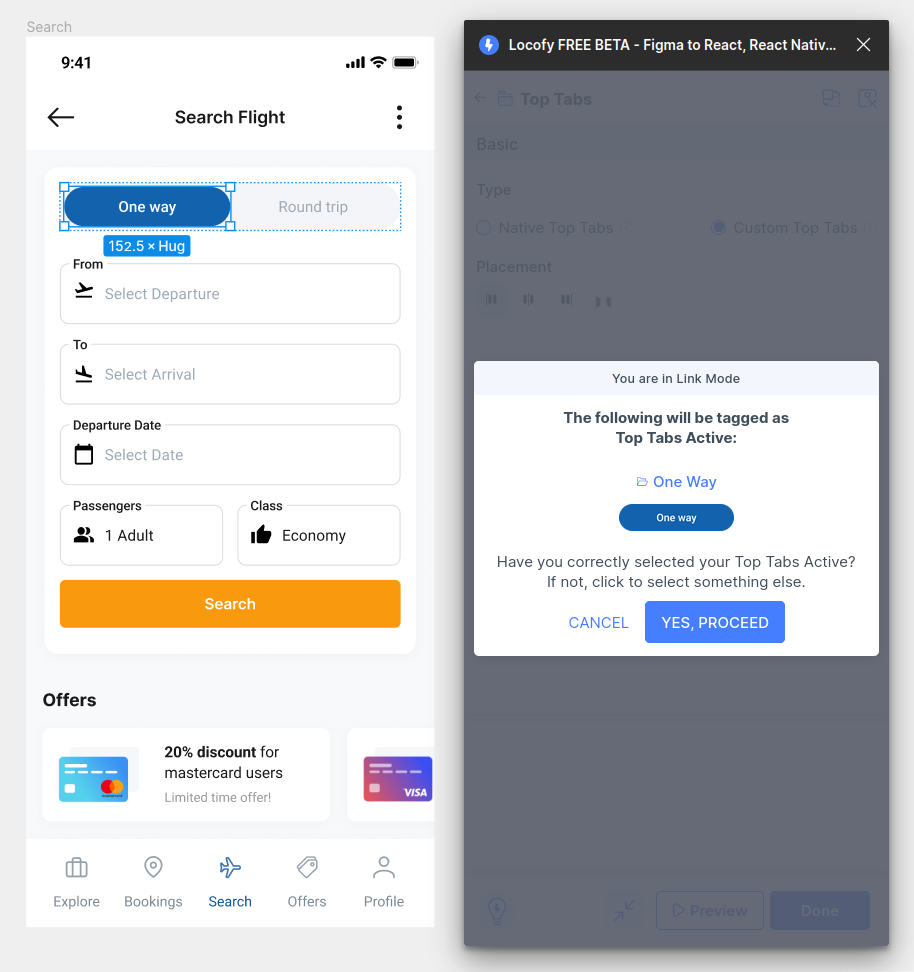
- Then, you will need to indicate the content to show for each of the tabs. Press locate and select the frame you want to display for each of the tabs.
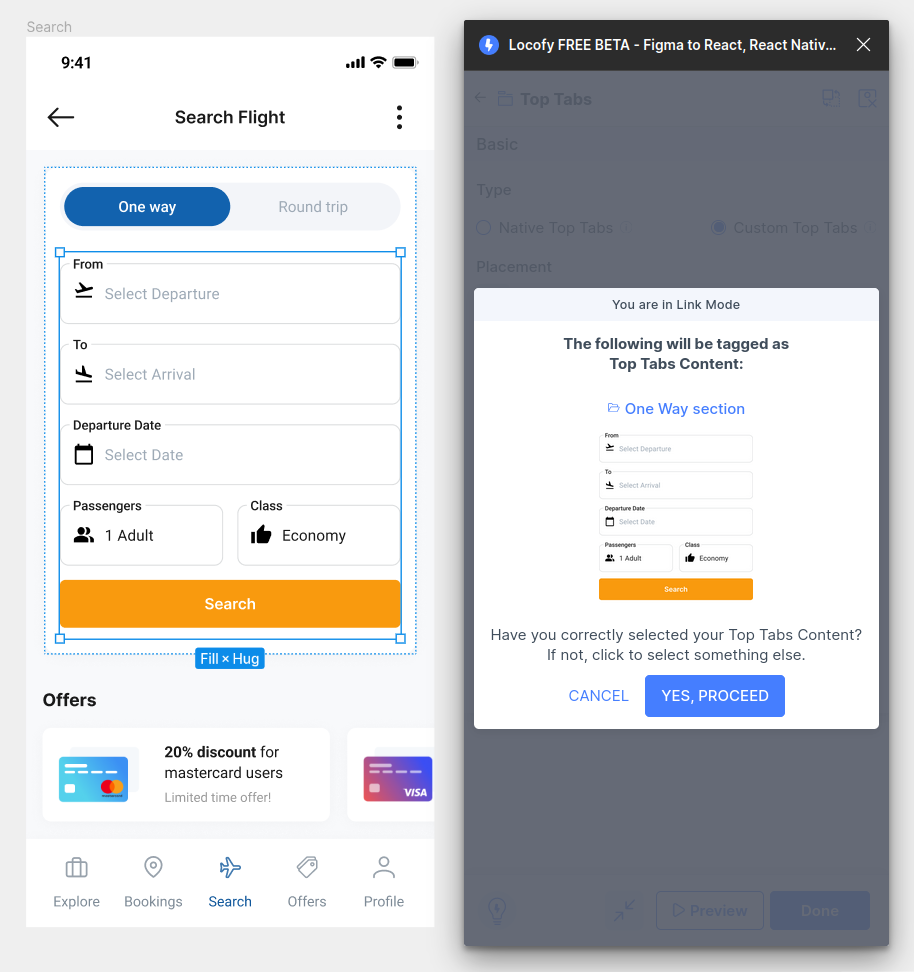
- Once all of the tabs have been configured, click done. You have now successfully tagged your top tabs.