Introduction to the Add Action widget
Learn the basics of adding triggers and actions to your design elements, allowing you to build fully featured apps and websites.
Adding an action
To add an action:
- Select a layer from your Figma file. You can select:
- A single element, such as a shape, text or vector
- A group or frame
- Choose an action: Decide what will happen when your element is clicked
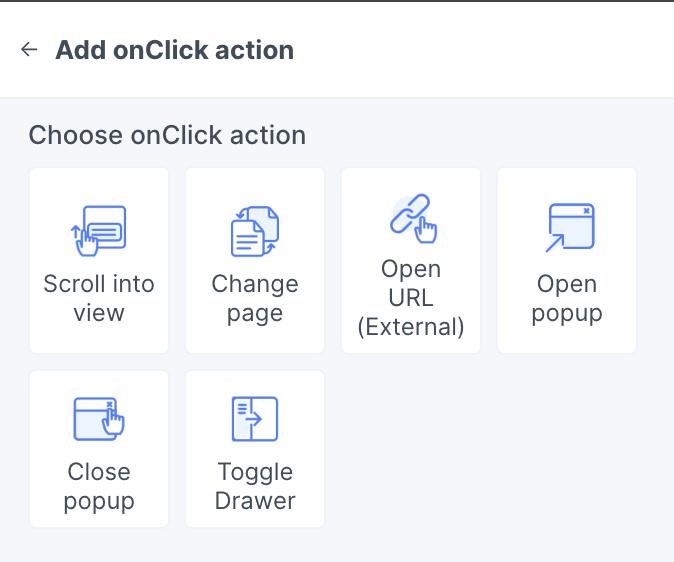
- Adjust settings: You can further define more details for the action.
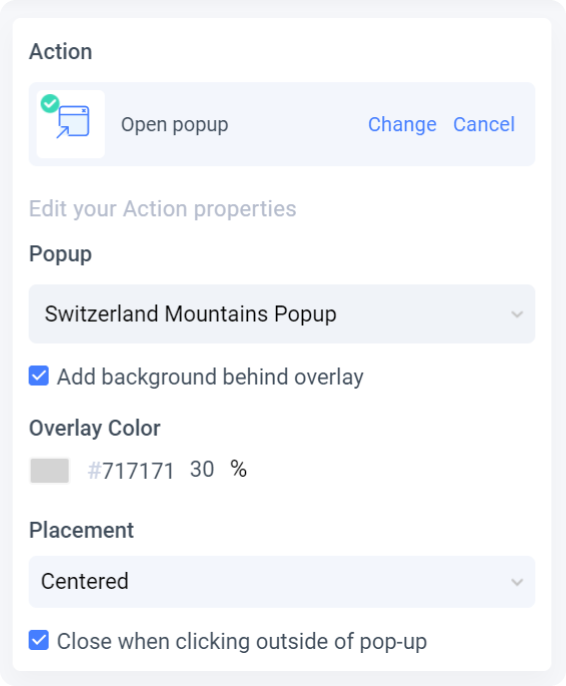

Change page

Open URL (External)
Write notes
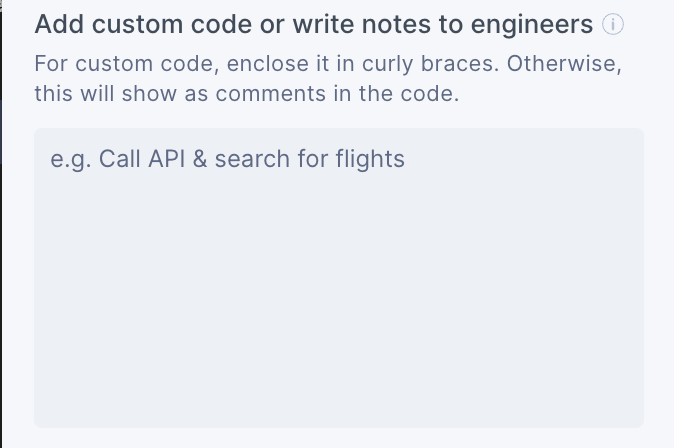
These notes will show as comments inside the code base.
Auto sync with Figma prototype links
If you have already created prototype interactions on your design, Locofy also does a two-way sync with your Figma prototype links.
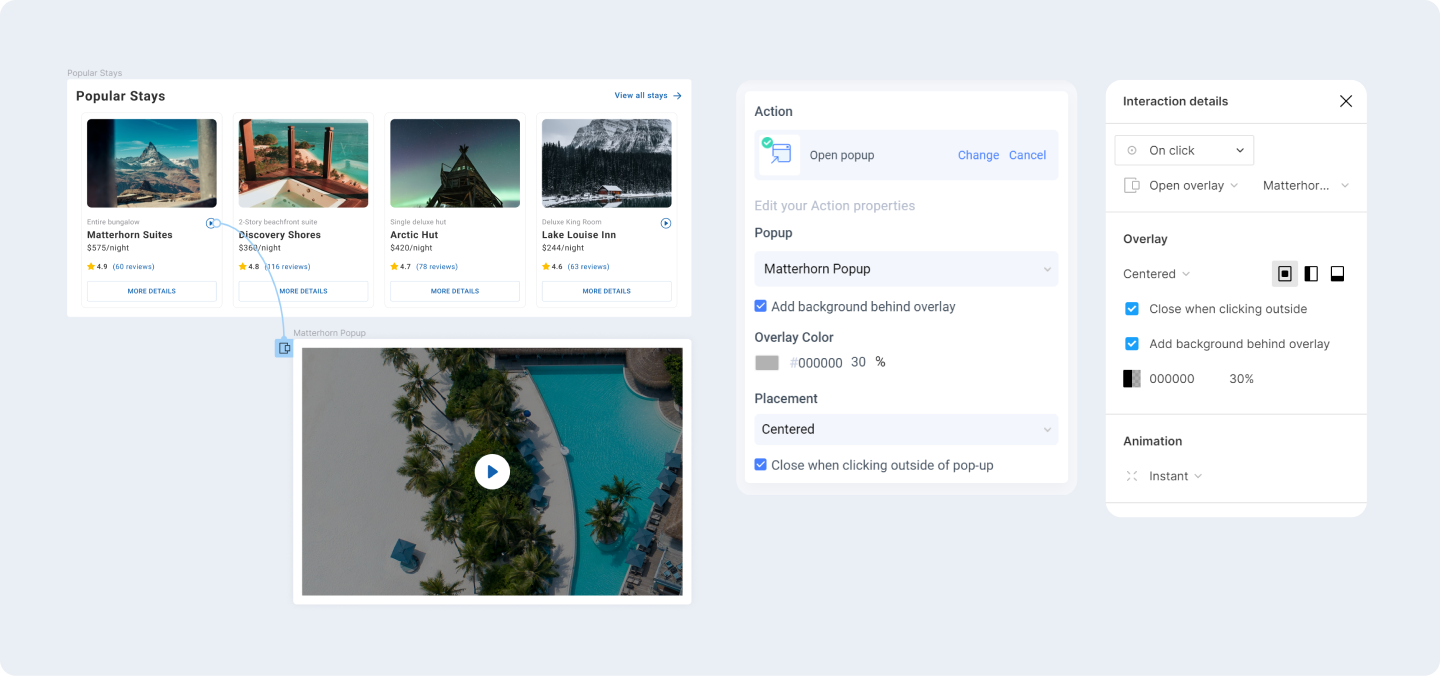
These are the Figma prototype interactions that Locofy currently syncs with:
Triggers:
- On click
Actions:
- Scroll to
- Open link
- Navigate to
- Open overlay
- Close overlay