Design Optimiser for Groups, Frames, and Background Images
Apply fixes to reduce unnecessary lines of code for cleaner code output
Introduction to optimising your groups, frames and background images
The first three fixes of the Design Optimiser assists you to get better, cleaner designs and code. It does so by helping you to structure your designs and reduce unnecessary elements.
- Remove unnecessary groups & frames
- Converting groups to frames
- Apply best practices for images and rectangles
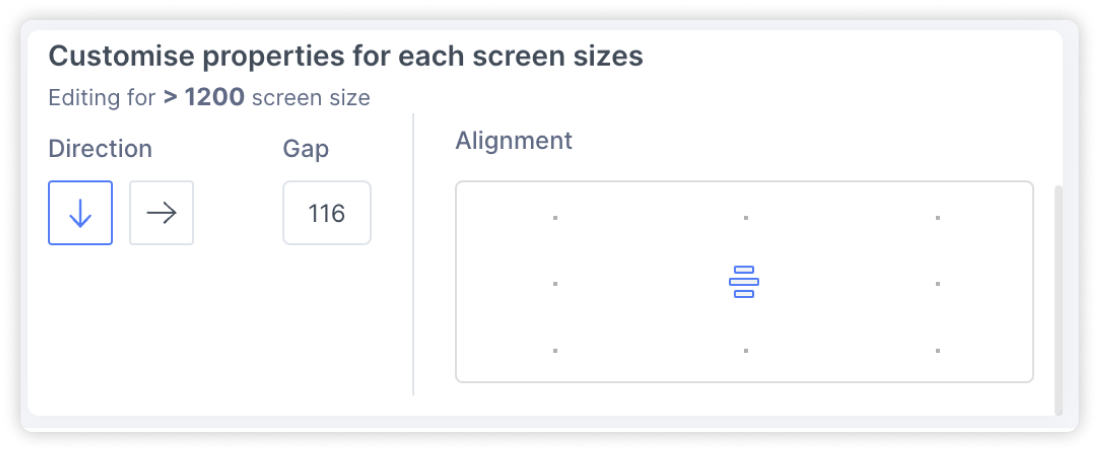
Here’s how each individual fix works and how you can easily apply them to your design.
Removing redundant groups & frames
Groups and frames are considered to be “redundant” if they do not contribute to the style and structure of your design. As such, they can removed without any impact on your design. This fix helps you to detect and remove redundant groups which leads to shorter, cleaner code.
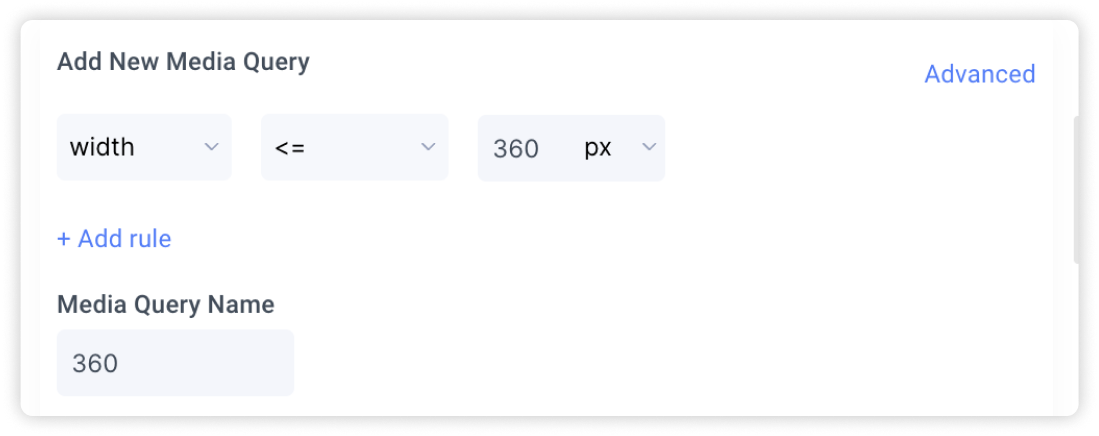
You will receive a list of layers which have been detected as redundant. You can review the suggestions and take the following actions:

View in Figma
Hover over an item on the list and click on “View in Figma” to locate the layer on the Figma canvas
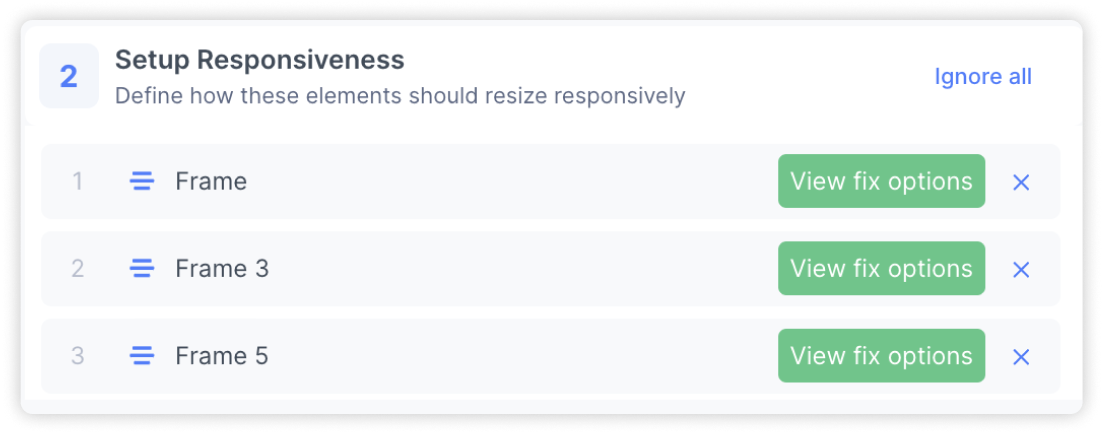
Applying the fix
Select ‘Fix’ to apply the fix for the targeted element.
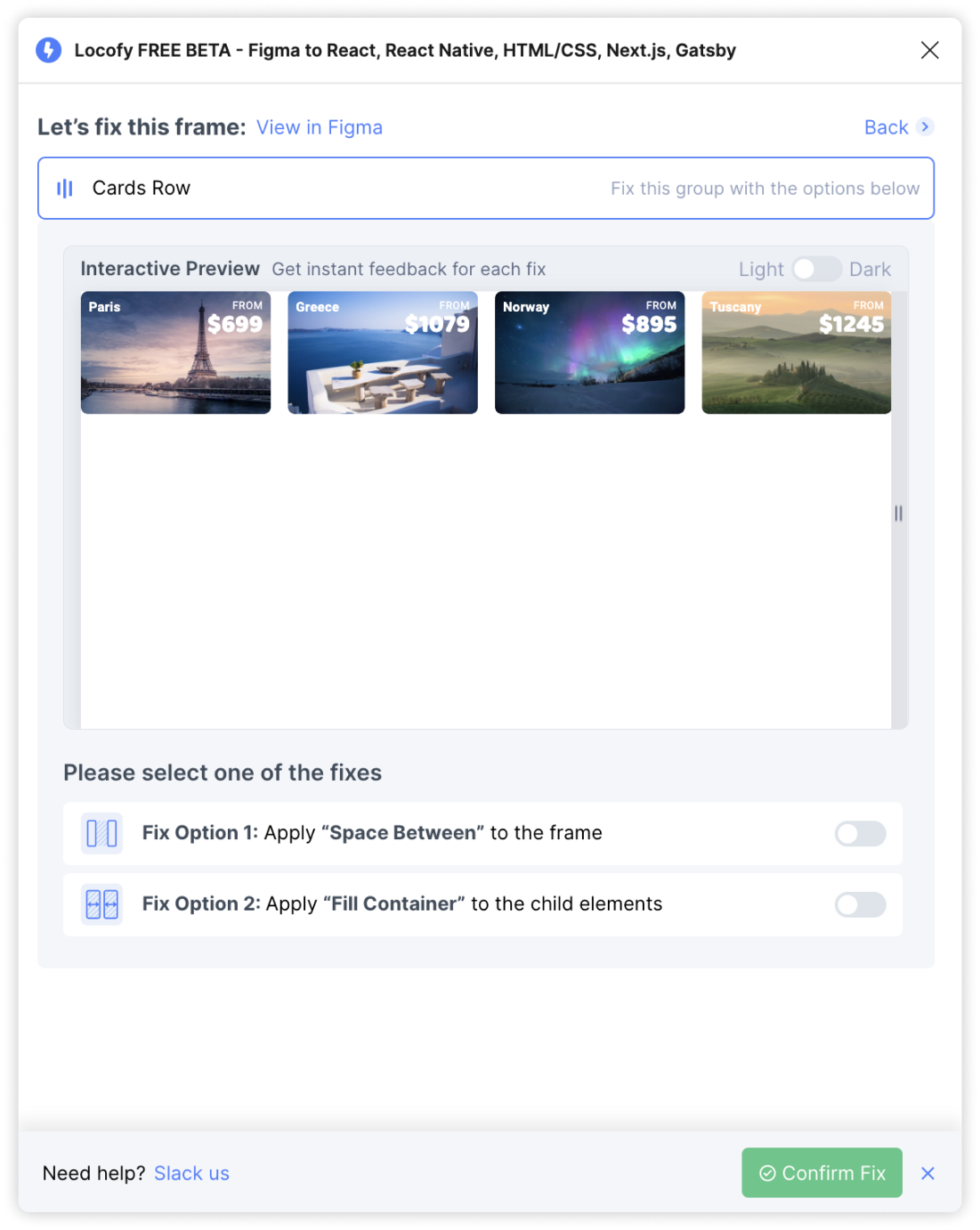
Ignore
Select the ‘x’ icon to ignore the suggestion. The item will be removed from the list permanently.
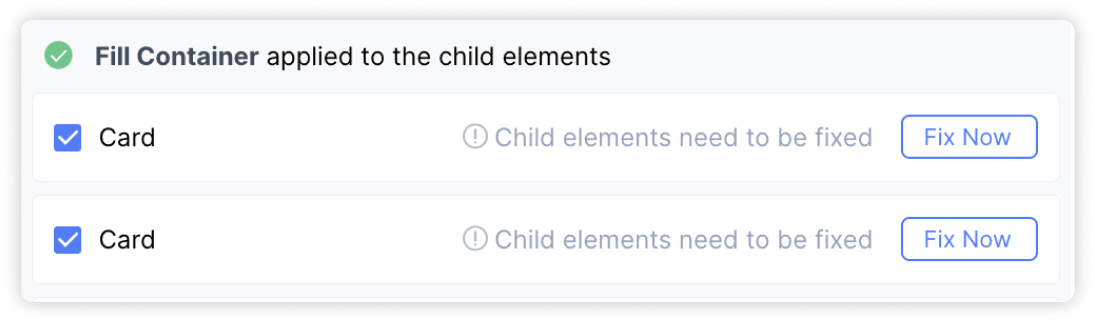
Multi-Select
Hovering over an item will reveal a checkbox that can be selected for bulk actions. You can then ignore or fix them in one go.
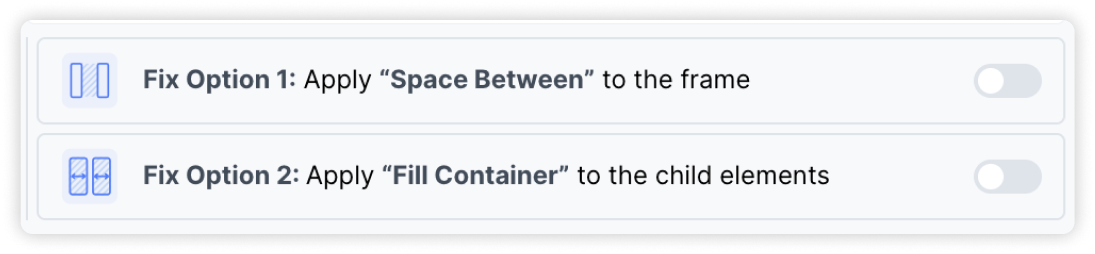
Fix all/ Ignore all
Select ‘Fix all’ to apply fix on all issue items or ‘Ignore all’ to ignore all issue items and move on to the next step
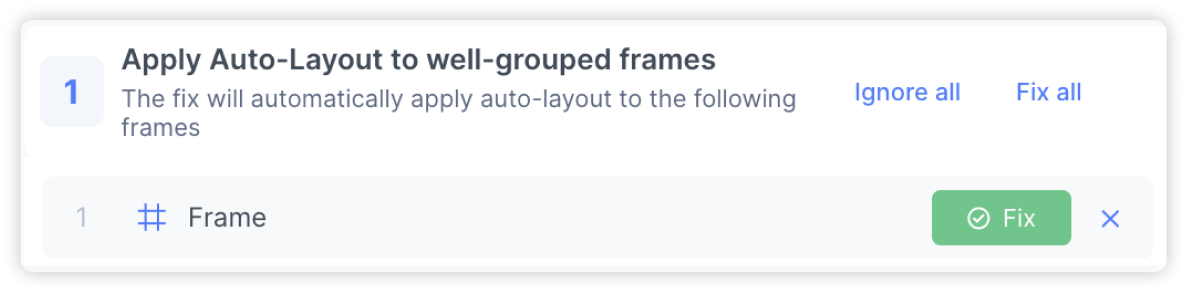
Convert groups into frames
This fix helps you to convert groups into frames. This is necessary as frames contain additional properties that are useful when applying responsiveness.

You will receive a list of groups which can be converted into frames. You can review the suggestions and take the following actions:
Applying the fix: Select ‘Fix’ to apply the fix for the targeted element.
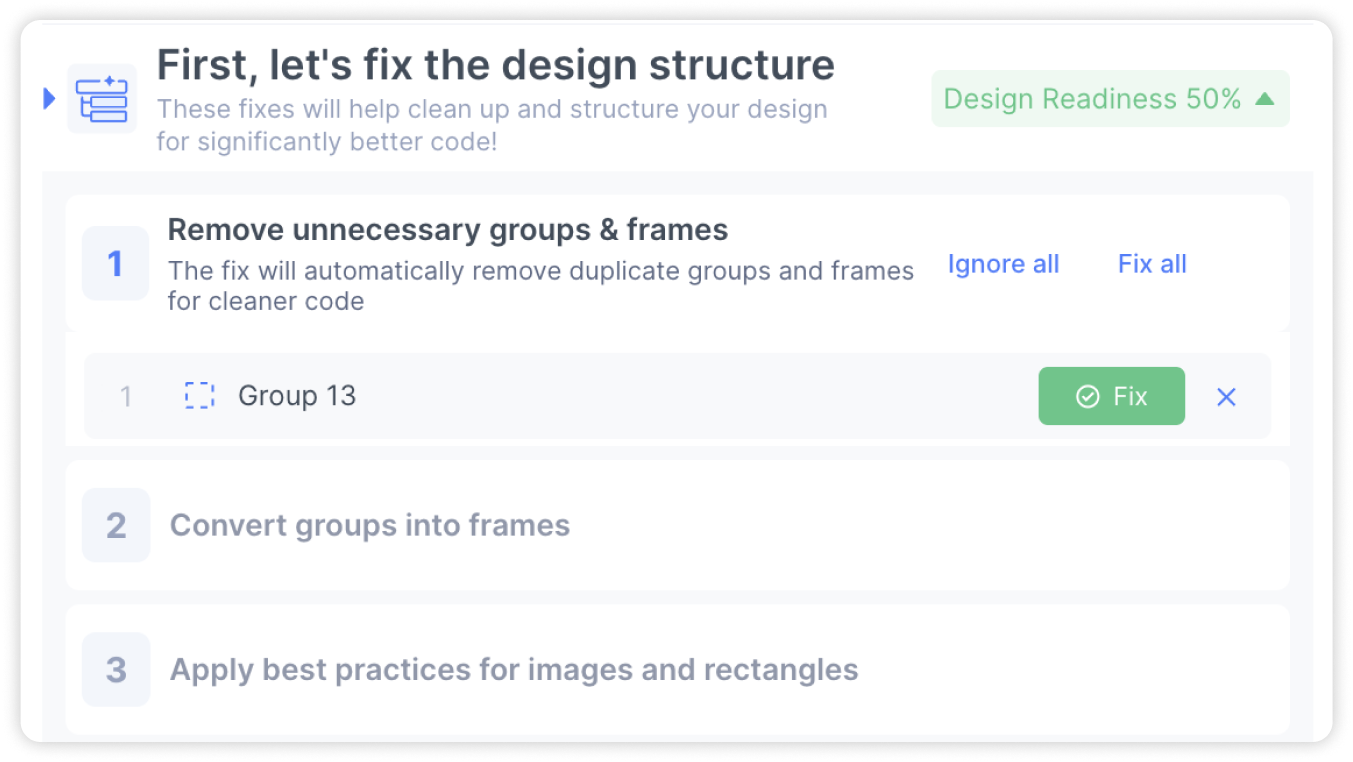
You can also hover over the items to locate them in your Figma file, apply bulk actions, as well as ignore the suggestion.
Apply best practices for images and rectangles
When creating elements like buttons, cards, and more, it is common to use rectangles or images to act as the background for actual content. This is convenient during the design process, however it can lead to additional layers and additional lines of code.
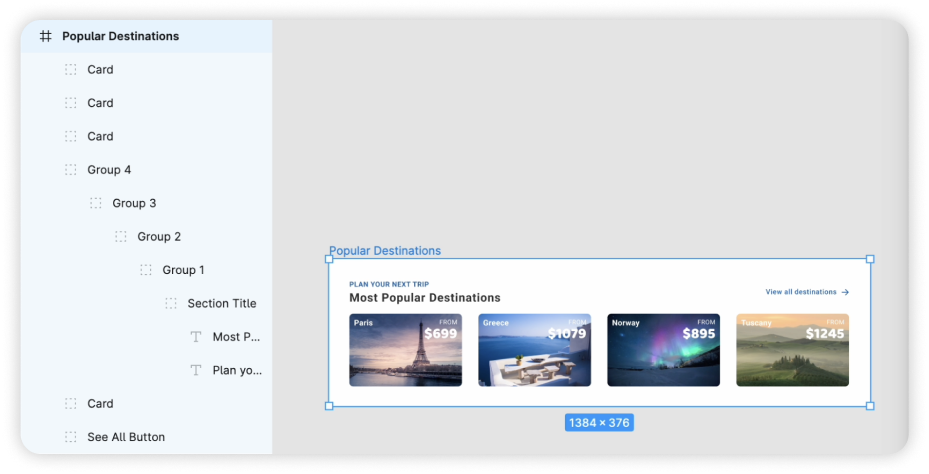
This fix helps to convert the rectangle or image into the background fill of the parent frame.
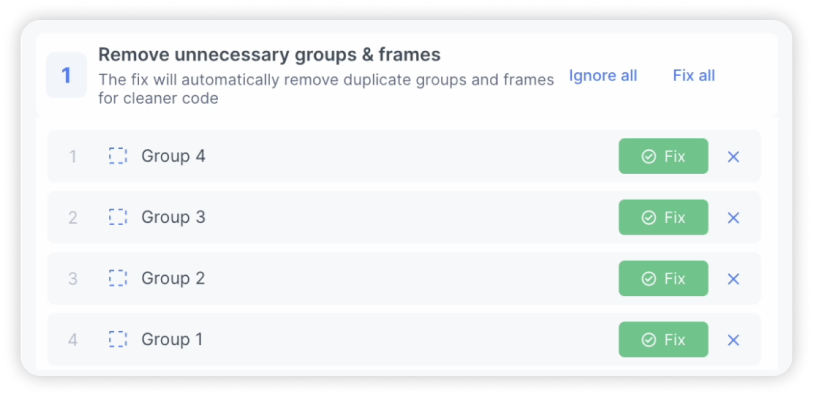

You will receive a list of frames which contain images/rectangles that should be removed. You can review the suggestions and take the following actions:
Fix to apply: Select ‘fix’ to convert the rectangle/image layer into the background fill for the frame

You can also hover over the items to locate them in your Figma file, apply bulk actions, as well as ignore the suggestion.
If you have any feedback or suggestions, please share it with us at support@locofy.ai